











What is WMV File?
WMV(Windows Media Video) is a general term for a series of video codec and related video encoding formats developed by Microsoft.
This format includes three different codec technologies: as a competitor to RealVideo, the original WMV video compression technology originally designed for streaming applications on the Internet; WMV screen and WMV image compression technology to meet specific content needs, and WMV version 9 was adopted as the release format for physical media after SMPTE standardization such as HD DVD and Blu-ray Disc, the so-called VC-1.
WMV Players
Software capable of playing WMV files includes Windows Media Player, RealPlayer, MPlayer, Media Player Classic, VLC Media Player, and K-Multimedia Player. Third-party players on various other platforms (like Linux) use FFmpeg implementation in WMV format for playback.
Besides, Microsoft currently supports a third-part QuickTime component called Flip4Mac that allows Macintosh users to play WMV files with any player that conforms to the QuickTime framework.
Why Do People Convert Video to WMV?
WMV is a good format that provides high-quality video. It is one of the most popular formats. It has a great compression ability that can save disc space. It can contain a large amount of video and audio files with a little storage and it is compatible with all Windows devices. This format is the best format for internet video streaming.
WMV is similar to MP4, a universal format. However, people convert MP4 video to WMV because it takes more space than WMV.
Video to WMV Converter
Below is the step-by-step guide on how to convert video files to WMV format.
Use VideoPower BLUE or ZEUS, a reliable and highly recommended converter that can convert video and audio to a different format. It can convert AVI, MP4, MOV, or other different video formats to WMV files. It has a built-in editor so you can enhance the video before converting it.
Moreover, if you download videos from YouTube, Facebook in MP4 format, you can easily convert it to WMV with just a few clicks.
This software is a multifaceted tool that has a lot of functions that include file format conversions, basic video, and audio editing, etc. Due to its wide array of formats to choose from, it is the best free audio converter out there.
ZEUS can do what VideoPower series can do and more with an almost similar interface.
Check out NOW! Start easier with more affordable prices!
3 Easy Steps to Convert Video to WMV Format
Step 1: Import the video to the program
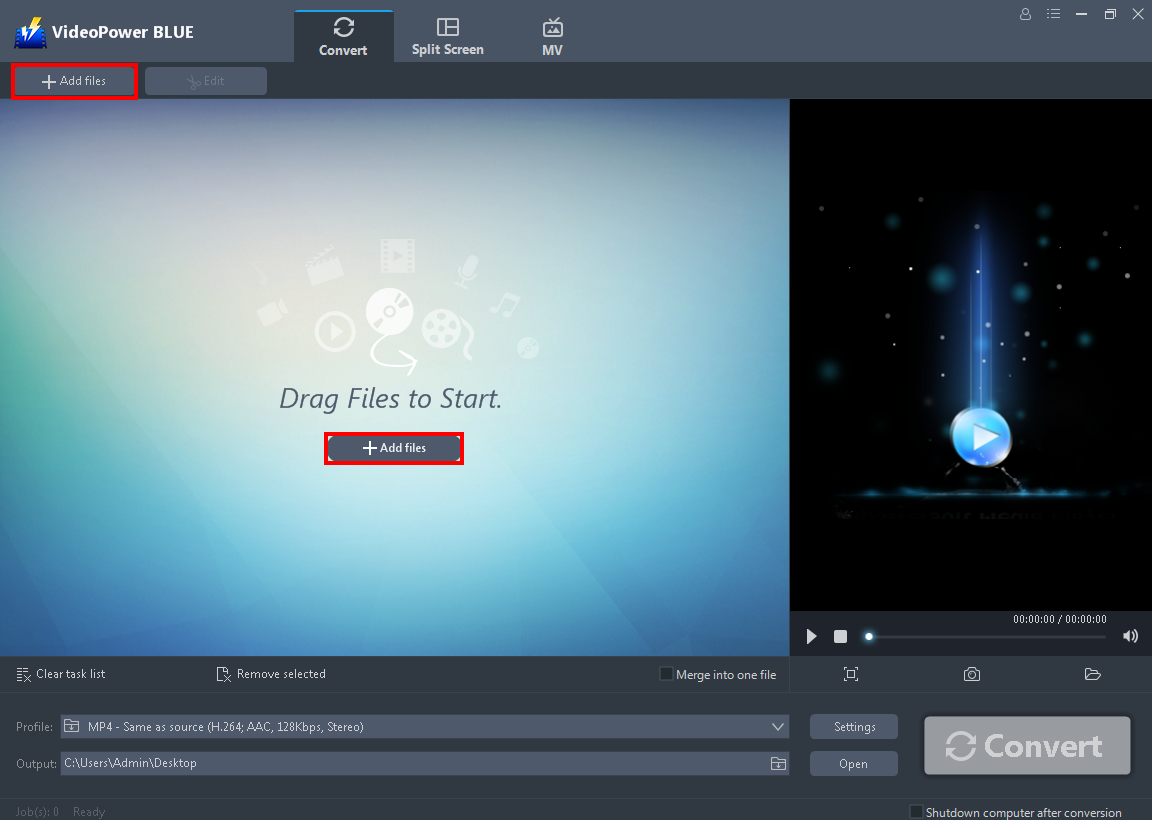
After you install the software you will automatically be in the convert window. The next thing you need to do is to hit the “+ Add Files” that you can see on its interface or drag and drop to import the video file that you wished to transform into a WMV file.
Step 2: Edit the video file before converting (optional)
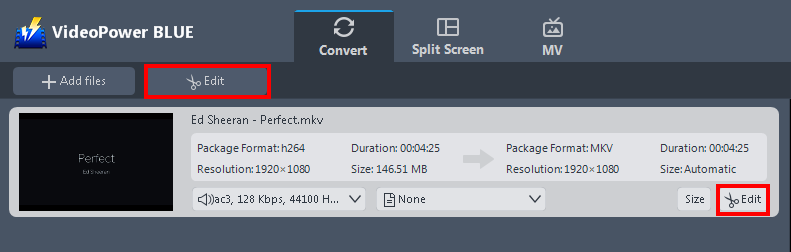
You can edit the video file before converting it if you need to enhance it, cut, add watermarks, etc. First, click the “Edit” button above the video or on the right bottom of it to open the built-in editor.
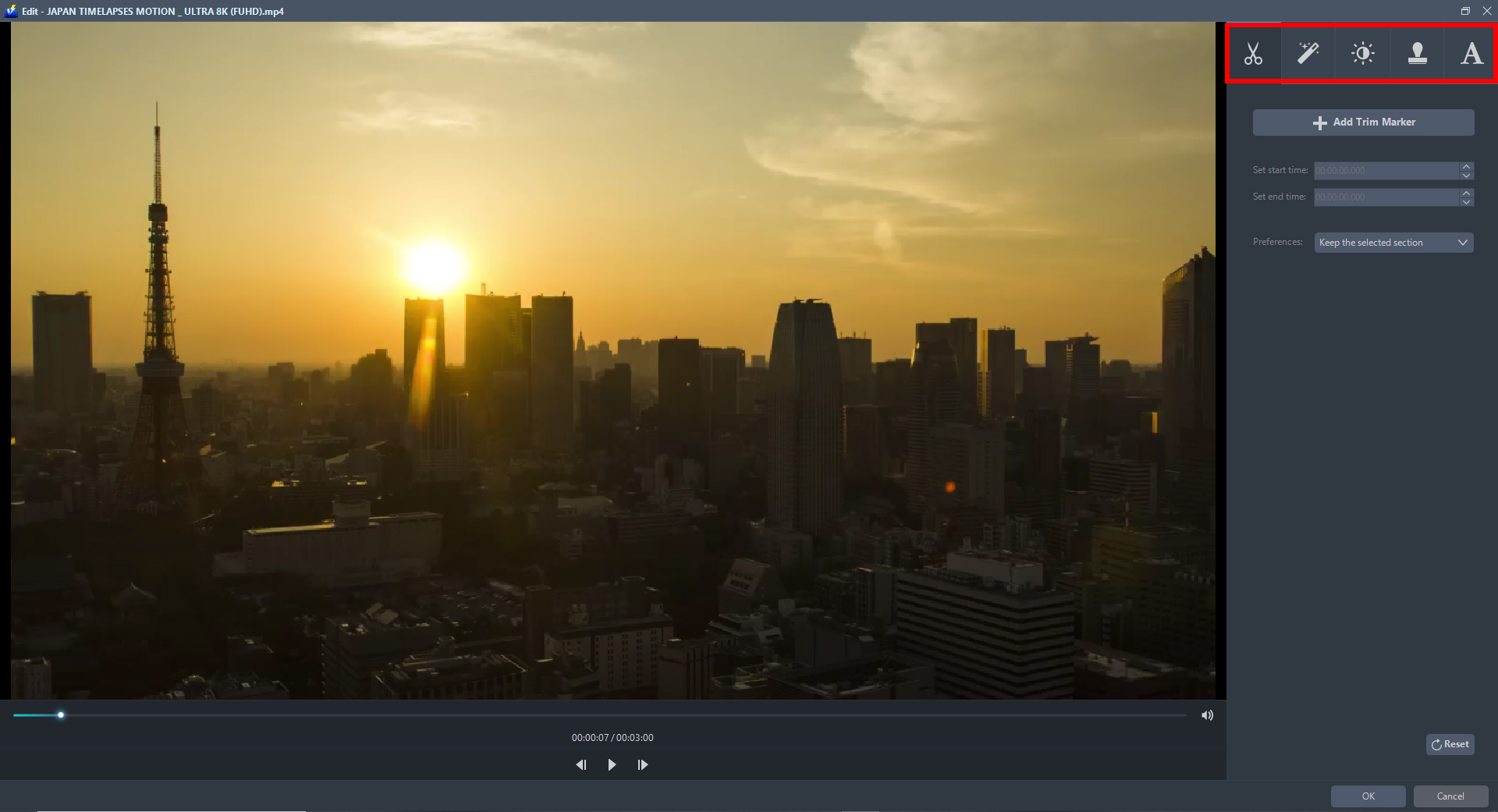
The editor will pop on the screen. Using this, you can enhance and beautify the video. Each section has the ability to improve your video. You can trim, crop, rotate and flip the video, you can also add subtitles, texts, and watermarks. Enhancing the video’s brightness, saturation, and adjusting its volume, speed, etc, are also possible.
Step 3: Specify the WMV format and start converting
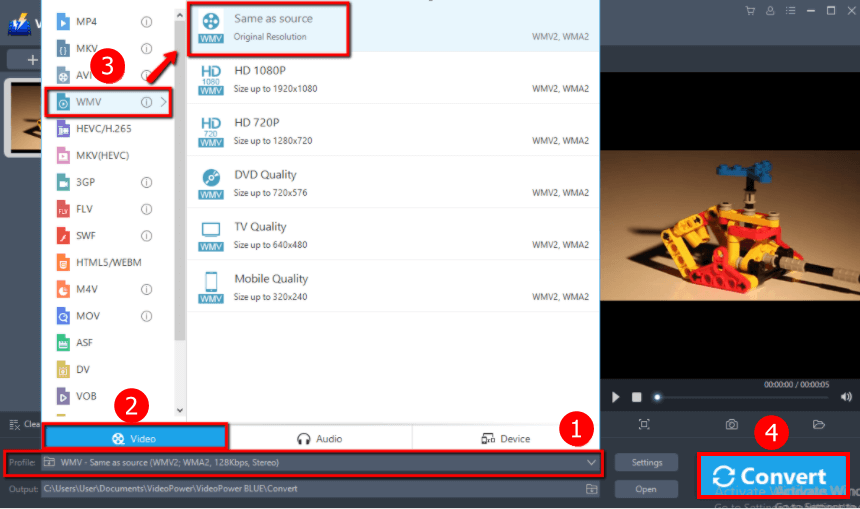
To start the video with the WMV conversion process, do the following.
1. Just click the “Profile” arrow-down button to see all the formats.
2. Go to the “Video” to enter the video output format preferred.
3. Choose the “WMV” format then the resolution “Same as source”. You can also select HD, TV quality, or whatever you deem appropriate.
4. Click the “Convert” button to save your converted video file.
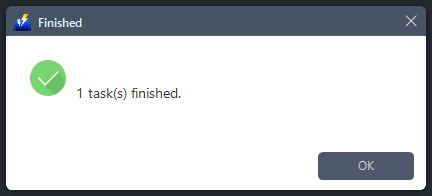
After the conversion, a pop-up box will appear informing you that one task is complete. Click “OK” to open the folder to find the location of the converted files.
Conclusion:
WMV works by allowing large files to be compressed or reduced in size for better support to use over the network while still protecting the quality during conversion.
VideoPower BLUE software can convert all video and audio files into common formats like WMV and devices easily. It’s handy and reliable that you can even convert in batches simultaneously while preserving good quality.
Moreover, it has a split-screen tool for your photos and videos. There’re so many advanced functions equipped in this program, which offer more options for you to convert and edit media files.
ZEUS series can do everything that VideoPower series can do and more, the interface is almost the same.
Check out NOW! Start easier with more affordable prices!




ZEUS Series
VideoPower brother products, start easier with more affordable prices!
| ZEUS BUNDLE 1 Year License ⇒ $29.99 |
ZEUS BUNDLE LITE 1 Year License ⇒ $19.99 |
ZEUS RECORD LITE 1 Year License ⇒ $9.98 |
ZEUS DOWNLOAD LITE 1 Year License ⇒ $9.98 |
||
| Screen Recorder | Screen&Audio Recording | ✔ | ✔ | ✔ | |
| Duration Setting, Schedule Recording | ✔ | ||||
| Video Downloader | Paste URL to download, batch download | ✔ | ✔ | ✔ | |
| Search/download video,browser detector | ✔ | ||||
| Music Recorder | Record music and get music ID3 tag info | ✔ | ✔ | ||
| Music search/download/record, CD Ripper/Creator, Audio Editor | ✔ | ||||
| Video Editor | Edit and convert videos, create slideshow | ✔ | |||
| Screen Capture | Capture screen, image editor | ✔ | |||