











A MOV file format is a common multimedia container file format developed by Apple. For that reason, compatible issues may arise in some players especially if your device is not by Apple.
The MP4 format for files is arguably the most common, mainly because it is the most universally supported format by a lot of devices.
As common as MP4 format is, there are still cases when downloaded videos are in the MOV format. In this case, you have to convert MOV to MP4. Online MOV to MP4 converters are an option but some are filled with malware that may potentially put your computer at risk.
VideoPower BLUE or ZEUS is a very useful video converting software bundled with a variety of features such as screen recording, editing, capture, and slideshow making. Due to its wide array of formats to choose from, it is the best free video converter out there.
You can try to use the software for free by downloading its trial version below.
ZEUS can do what VideoPower series can do and more with an almost similar interface.
Check out NOW! Start easier with more affordable prices!
Step 1: Add the MOV file to convert it to MP4 format
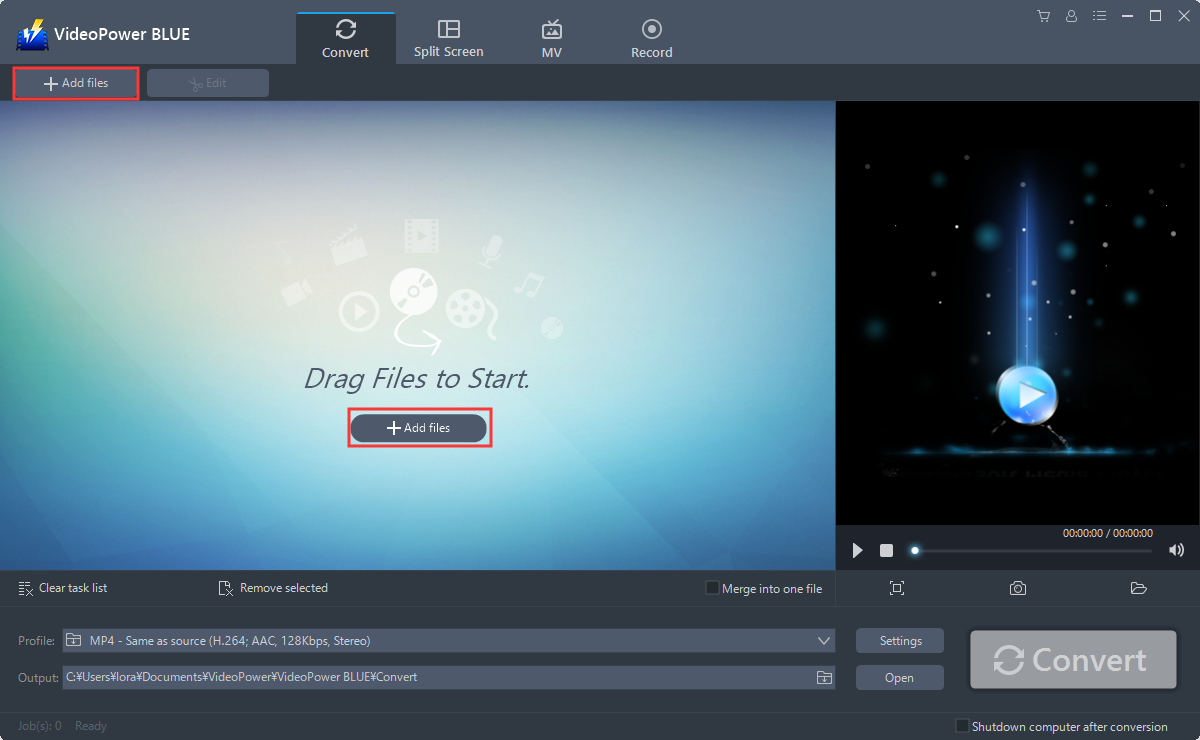
Run the program if you have installed the VideoPower BLUE successfully on your PC. You can directly import the MOV file to the program by clicking the “Add files” button or by drag-and-drop to the interface.
Step 2: Edit the MOV file before conversion
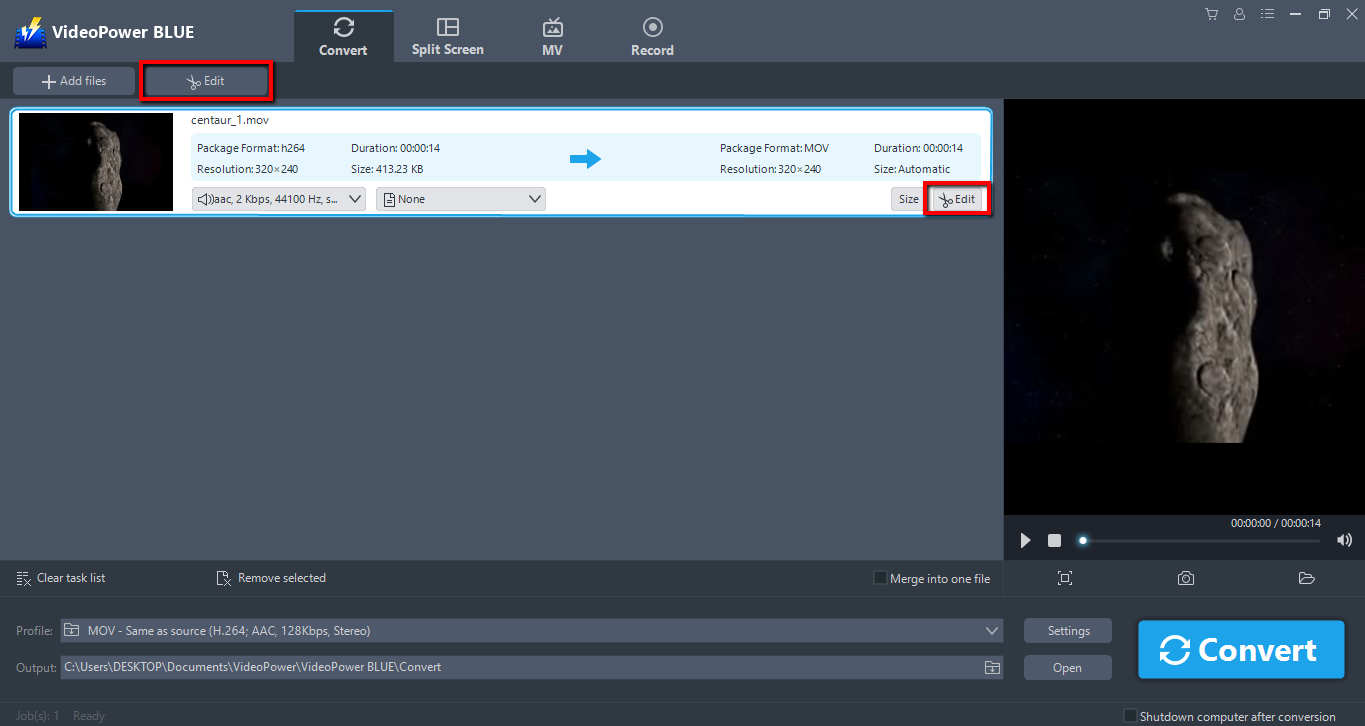
Click the “Edit” button on top or at the right side of the added MOV file to enter the Edit windows so you can design your MOV video before converting it to MP4.
Step 3: Convert MOV video to MP4 format
The default output format is MP4, if you want to change the output format, just click “Profile” and select from the given list.
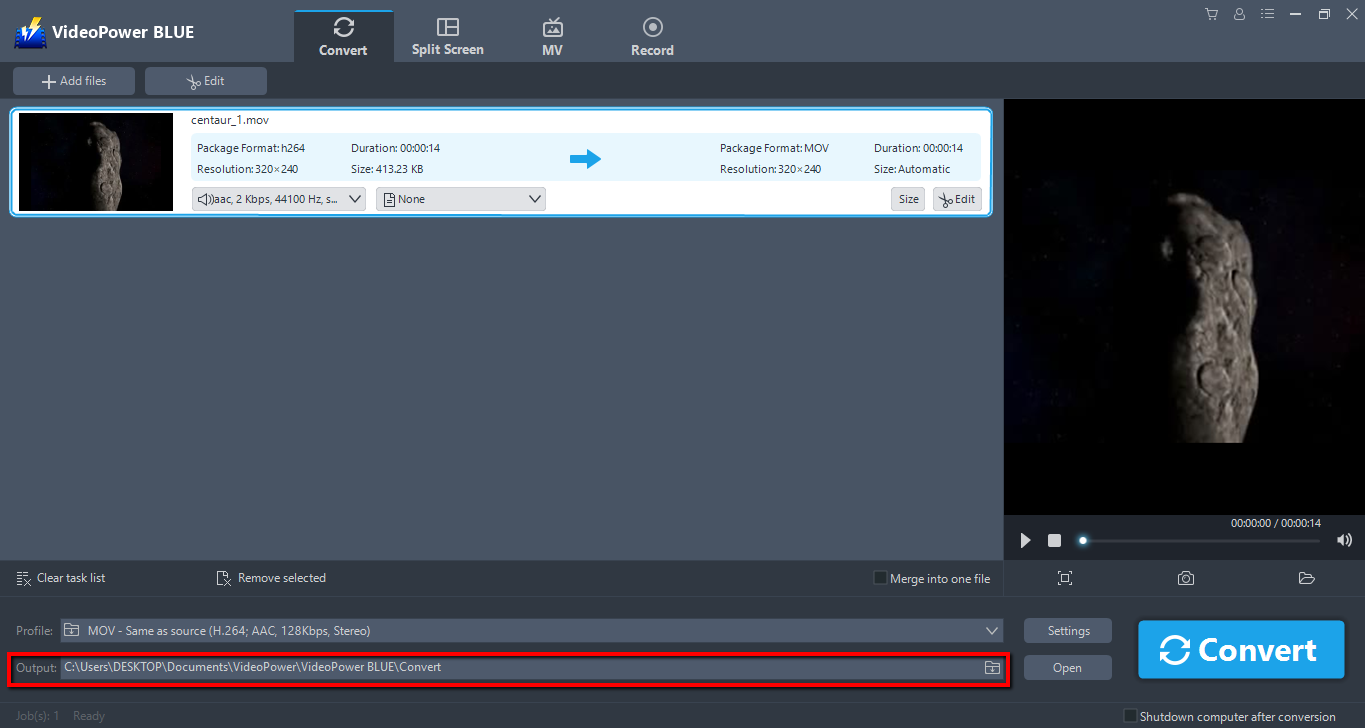
Choose a location where you want to save the converted files. Click the “Output” icon and select the destination folder.
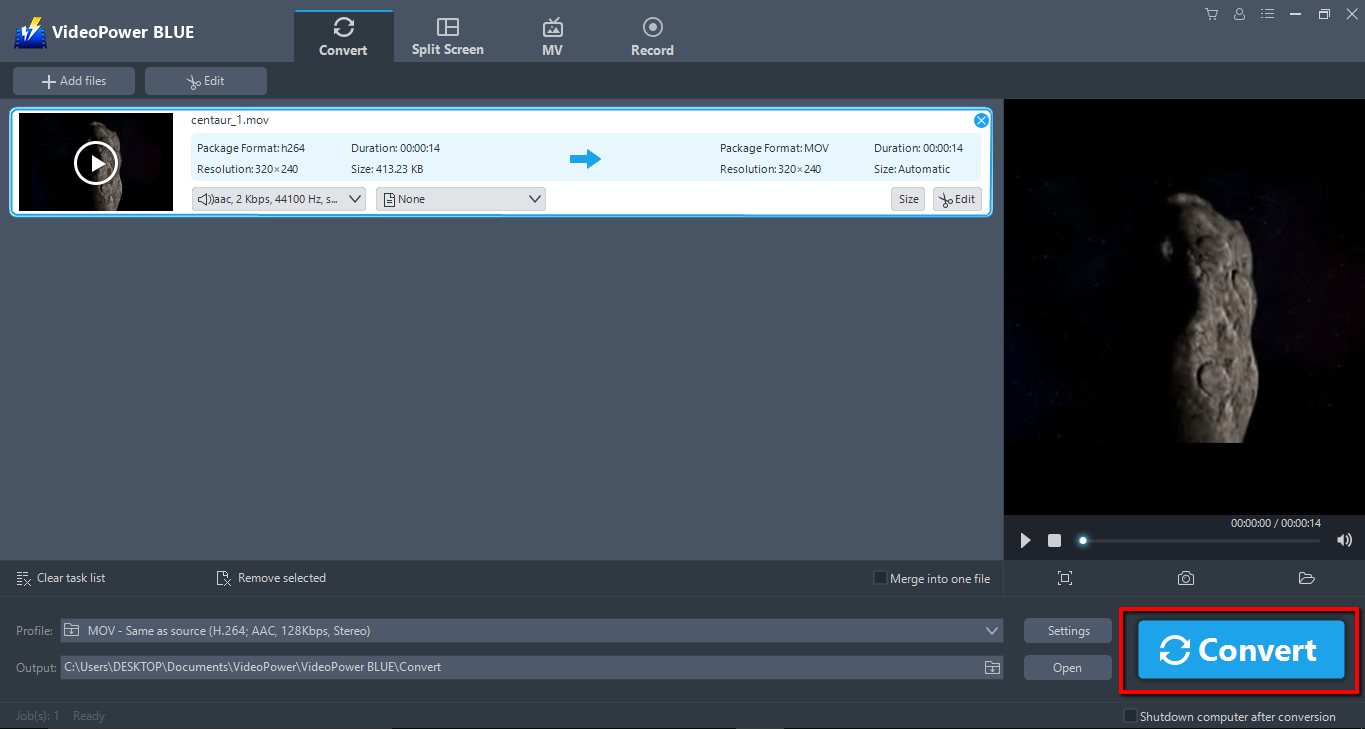
After setting the output location, click the “Convert” button, then the software will start to convert and save the edited video in MP4 format.
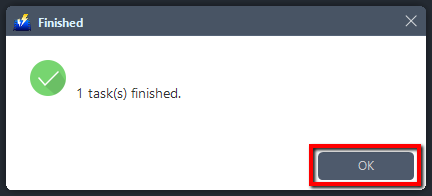
A pop-up window from the program will appear informing you that the conversion is complete. Click “OK” to open the folder of your saved converted MP4 files.
Conclusion:
VideoPower BLUE is a flexible desktop application which is probably the best tool in the market to date. This is the perfect conversion tool to convert MOV format to MP4 as well as to other formats. This software provides you various features such as recording, video editing which includes trimming, rotating, adjusting the resolution, speed, volume, brightness, adding subtitles, and a lot more.
ZEUS series can do everything that VideoPower series can do and more, the interface is almost the same.
Check out NOW! Start easier with more affordable prices!
convert mov to mp4 for free online, how do I convert mov to mp4 for free, how do I convert mov to mp4 for free on mac, how do I convert mov to mp4 for free on iPhone, free software to convert mov to mp4 for mac, how to convert mov file to mp4 for free, how do I convert large mov to mp4 for free, convert large mov to mp4 for free, how to convert mov to mp4 on windows for free




ZEUS Series
VideoPower brother products, start easier with more affordable prices!
| ZEUS BUNDLE 1 Year License ⇒ $29.99 |
ZEUS BUNDLE LITE 1 Year License ⇒ $19.99 |
ZEUS RECORD LITE 1 Year License ⇒ $9.98 |
ZEUS DOWNLOAD LITE 1 Year License ⇒ $9.98 |
||
| Screen Recorder | Screen&Audio Recording | ✔ | ✔ | ✔ | |
| Duration Setting, Schedule Recording | ✔ | ||||
| Video Downloader | Paste URL to download, batch download | ✔ | ✔ | ✔ | |
| Search/download video,browser detector | ✔ | ||||
| Music Recorder | Record music and get music ID3 tag info | ✔ | ✔ | ||
| Music search/download/record, CD Ripper/Creator, Audio Editor | ✔ | ||||
| Video Editor | Edit and convert videos, create slideshow | ✔ | |||
| Screen Capture | Capture screen, image editor | ✔ | |||