











Have you ever downloaded a video in MKV format on the Internet and cannot open it?
MKV is usually a file format of videos downloaded from the Internet. MKV ensures the overall audio-visual effect of the video even in a smaller size.
So some people liked their videos to be in MKV file format. But compatible issues say it differently, some players don’t support this kind of file format so you have to convert your files to a different format.
The WMV file is one of the most common files used to store video in Windows. You can watch videos stored in WMV files with a variety of media players. If you are concerned about the inconvenience of other operations, converting MKV to WMV for use is a worthwhile choice.
In this case, we would like to introduce VideoPower BLUE or ZEUS.
VideoPower BLUE is a multi-faceted software that has a lot of functions. These functions include recording screen activity, basic video, and audio editing, and file conversions. Due to its wide array of formats to choose from, it is the best converter out there. This software can convert MKV to WMV.
You can try to use the software for free by downloading its trial version below.
ZEUS can do what VideoPower series can do and more with an almost similar interface.
Check out NOW! Start easier with more affordable prices!
Step 1: Add the MKV File to convert it to WMV
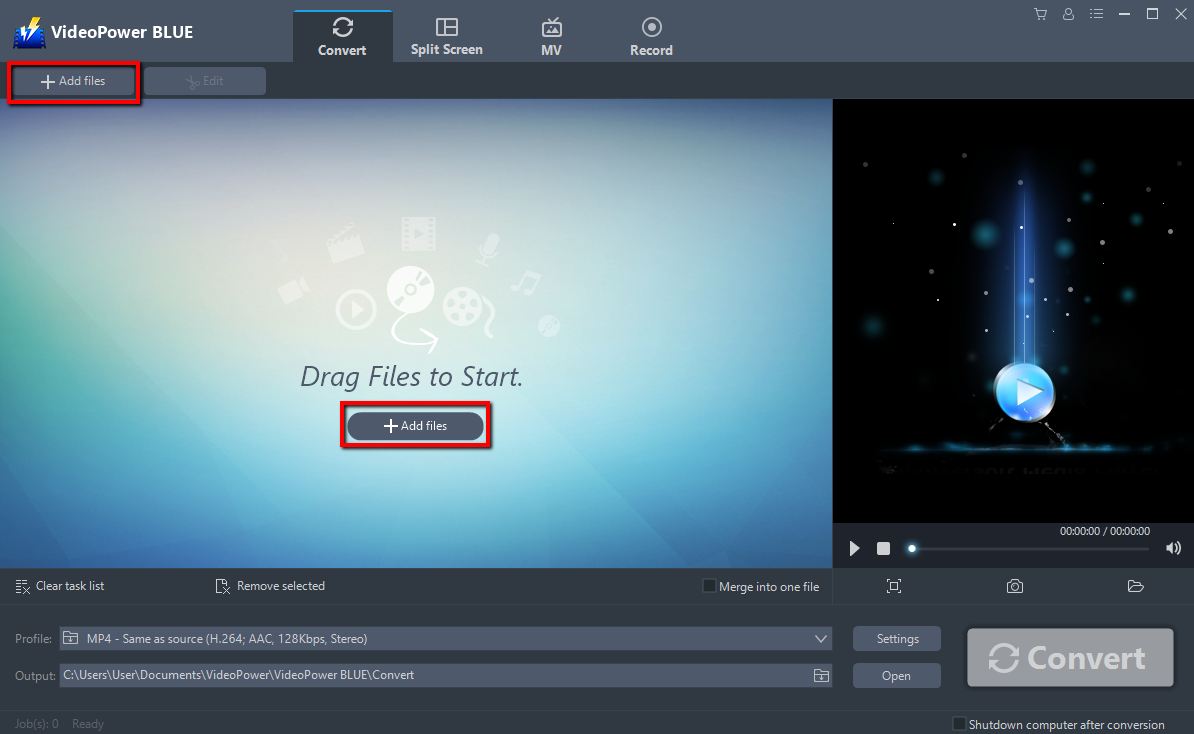
Import the MKV file into the program to convert it to WMV. Click the “Add files” button to select files from your PC, or directly drag-and-drop the files to the interface.
Step 2: Edit the MKV file before conversion
If you want to edit the file first before converting, just follow the instructions below.
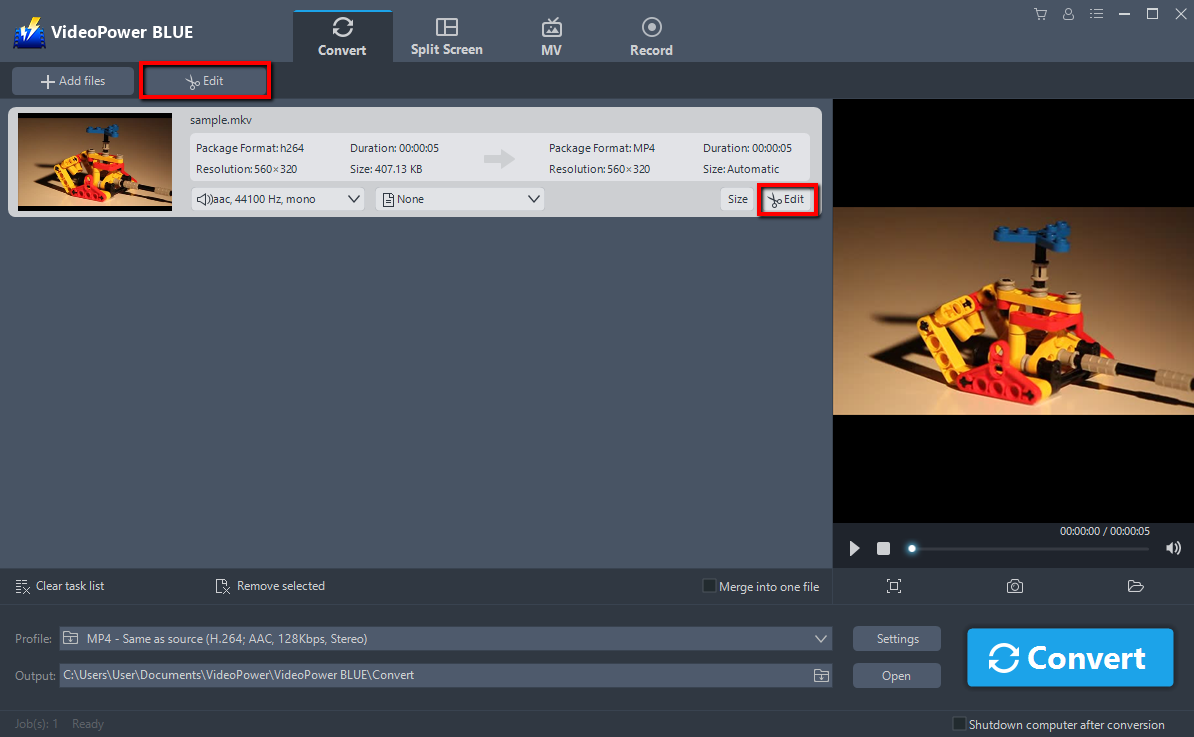
Click the “Edit” button at the right side of the added MKV file to enter the Edit window so you can design your MKV now.
Step 3: Convert MKV to WMV format
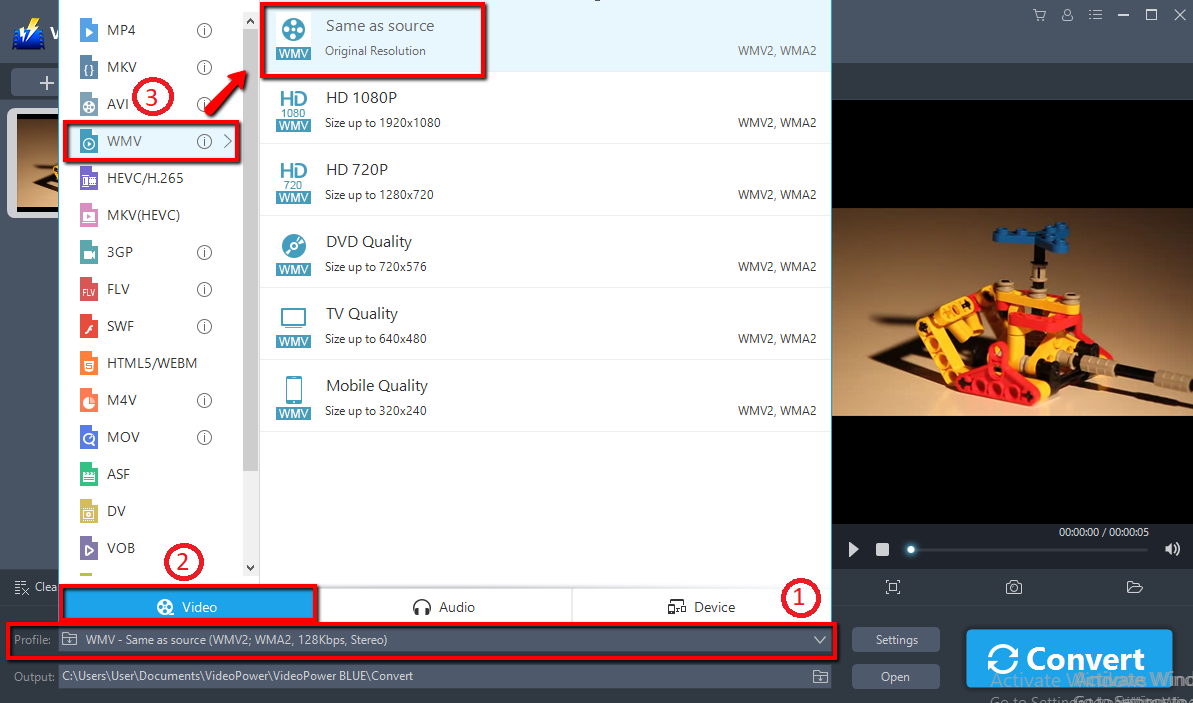
Before conversion, you should set the output format and folder first as the default output format is MP4.
1) Click the “Profile” bar.
2) Choose “Video”.
3) Set the format to “WMV – Same as source”.
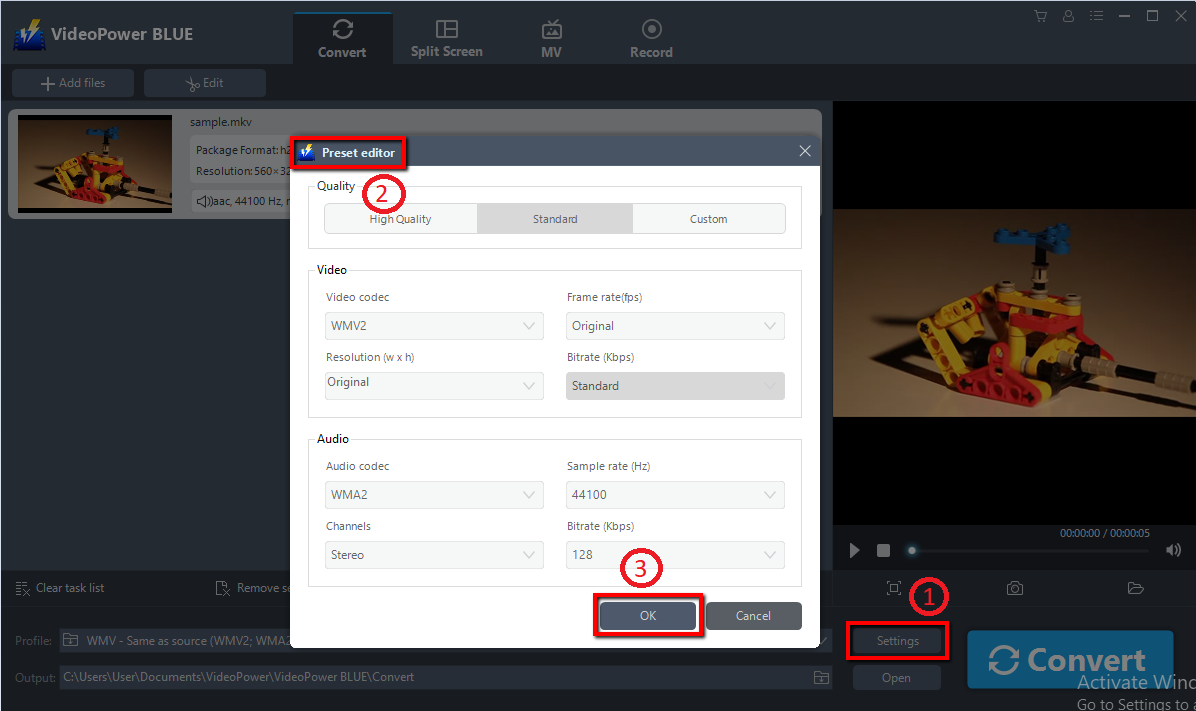
You can also customize frame rate, bitrate, codec, etc. manually.
Just click the (1)“Settings” button to enter the (2)“Preset editor” window, then you can change the value and click (3)“OK” to save the settings.
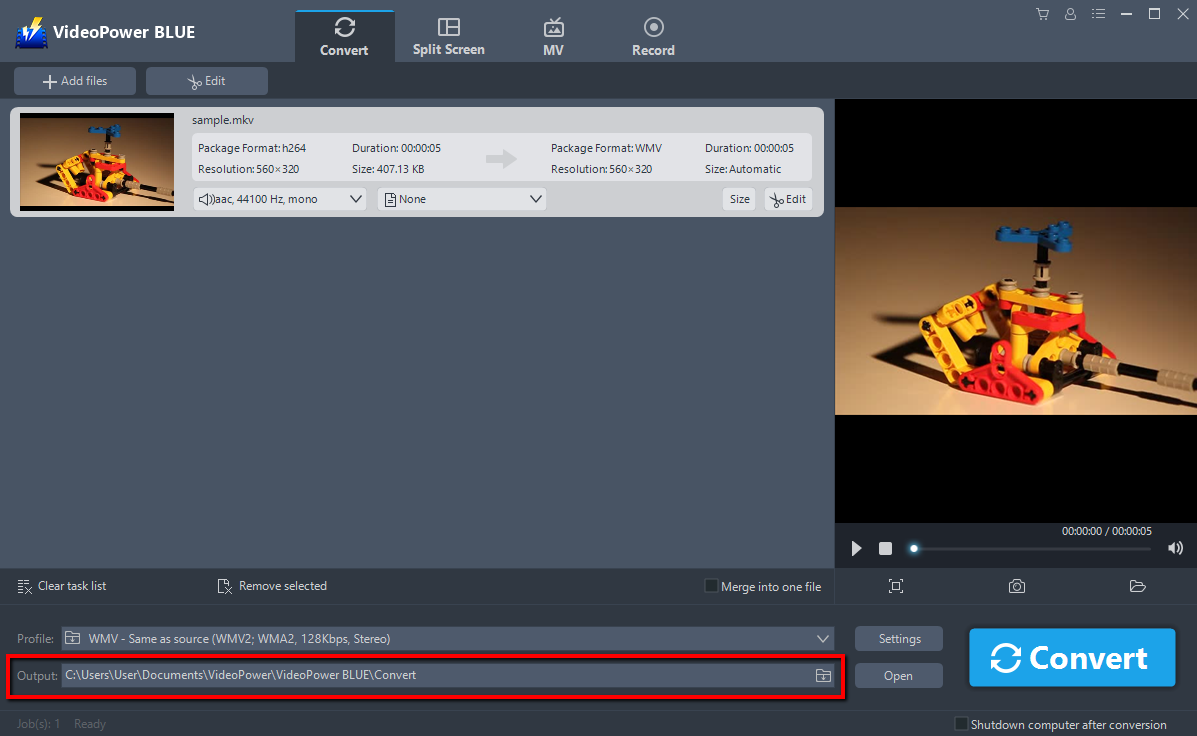
Choose a storage location to save the converted files. Click the “Output” icon and select the destination wherever you want to store the file.
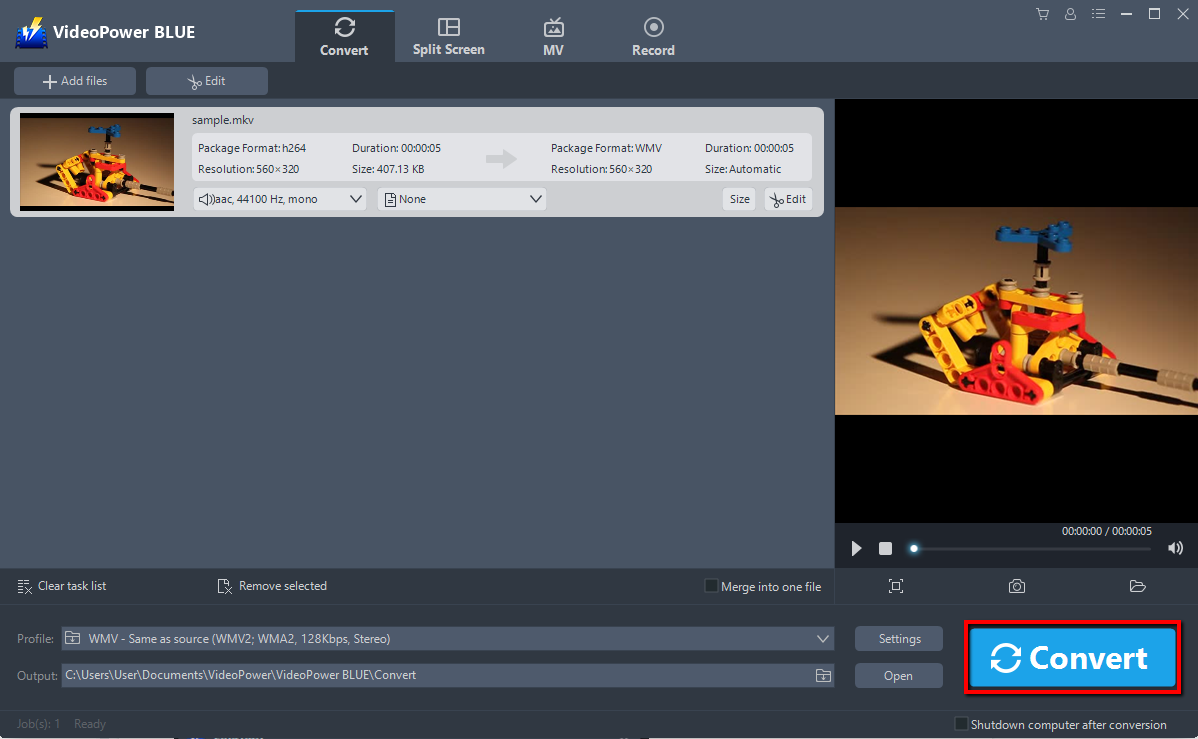
After setting the output location, click the “Convert” button, then the software will start to convert and save the edited video in WMV format.
A pop-up window from the program will appear informing you that the conversion is complete. Click “OK” to open the folder of your saved converted WMV files

Conclusion:
Due to its wide array of formats to choose from, VideoPower BLUE allows you to convert videos into tons of other formats. This is the perfect solution for converting MKV file to WMV file format.
Another main function of this program is the video editor function, for instance, trim images, adjust effects, add watermarks, add subtitles, make MV or split-screen videos. You can merge videos into one file and a screen recorder which allows you to capture any on-screen activity on your computer.
ZEUS series can do everything that VideoPower series can do and more, the interface is almost the same.
Check out NOW! Start easier with more affordable prices!
solution for mkv to wmv converter, solution for mkv to wmv windows 10




ZEUS Series
VideoPower brother products, start easier with more affordable prices!
| ZEUS BUNDLE 1 Year License ⇒ $29.99 |
ZEUS BUNDLE LITE 1 Year License ⇒ $19.99 |
ZEUS RECORD LITE 1 Year License ⇒ $9.98 |
ZEUS DOWNLOAD LITE 1 Year License ⇒ $9.98 |
||
| Screen Recorder | Screen&Audio Recording | ✔ | ✔ | ✔ | |
| Duration Setting, Schedule Recording | ✔ | ||||
| Video Downloader | Paste URL to download, batch download | ✔ | ✔ | ✔ | |
| Search/download video,browser detector | ✔ | ||||
| Music Recorder | Record music and get music ID3 tag info | ✔ | ✔ | ||
| Music search/download/record, CD Ripper/Creator, Audio Editor | ✔ | ||||
| Video Editor | Edit and convert videos, create slideshow | ✔ | |||
| Screen Capture | Capture screen, image editor | ✔ | |||