











AIFF or Audio Interchange File Format is an audio format developed by Apple Inc. which is used for storing audio data and as we all know, Apple file formats are not compatible enough with most devices or players. Editing the AIFC file would be a big problem if the editor cannot accept the file. So converting AIFF to MP3 is an easier way.
MP3 format is one of the most commonly used audio formats and it has great compatibility.
Here, a highly recommended software that can be used to convert AIFF to MP3 format. Introducing, VideoPower BLUE or ZEUS, a powerful and versatile video converter that supports AIFF to MP3 format, and many more.
It is great software with a variety of options and features including editing, and conversion that can convert AIFF to MP3 easily.
You can try to use the software for free by downloading its trial version below.
ZEUS can do what VideoPower series can do and more with an almost similar interface.
Check out NOW! Start easier with more affordable prices!
Steps to Convert AIFF to MP3 Audio Format
Step 1: Add the AIFF audio file
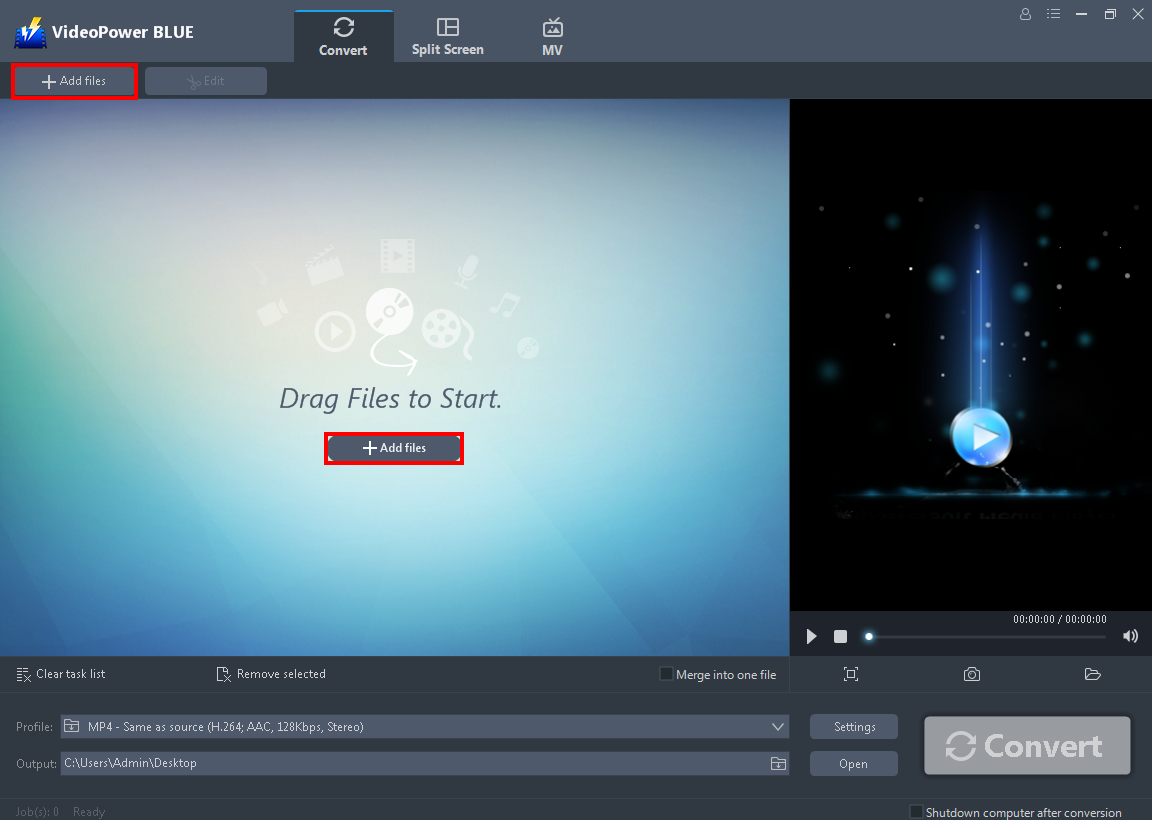
Launch VideoPower BLUE. Directly import the AIFF file to the software by clicking the “+ Add files” button or by drag-and-drop the file to the interface.
Step 2: Edit the audio (Optional)
Note: If users opt to edit the file before conversion then follow through this step. If users do not wish to edit the audio, they may go directly to Step 3.
2. 1 Open the editor
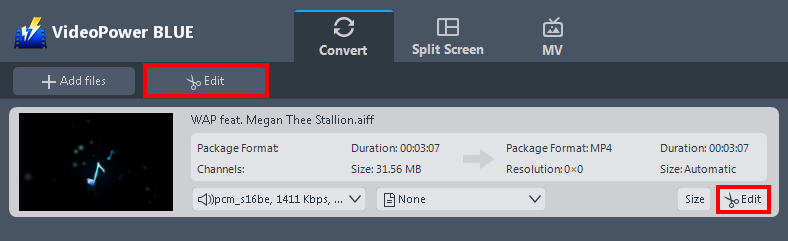
The imported audio file is displayed in the list. Click the “Edit” button on the right side of the file to open the audio editor.
2.2 Edit the audio
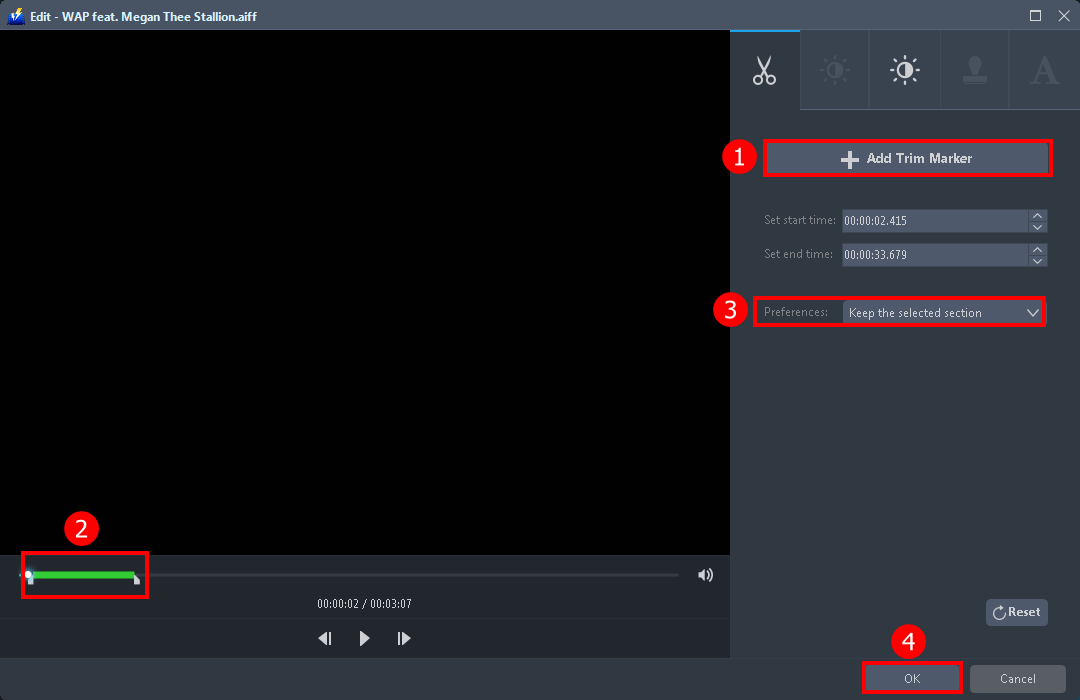
The built-in video editor will pop up, you can trim your file as shown above:
1. Click “Add Trim Marker”.
2. Drag the mark as shown below to select the part you want to cut. If you want to select multi-sections, please repeat 1 and 2
3. Choose the “Keep the selected section” or “Delete the selected section” from “Preferences”.
4. Click “OK” to save the setting.
Step 3: Convert AIFF to MP3 format

1. Click the “Profile” drop-down button.
2. Navigate to the “Audio” to choose audio format.
3. Choose the “MP3” and the quality you prefer.
4. Click the “Convert” button to start saving the file.
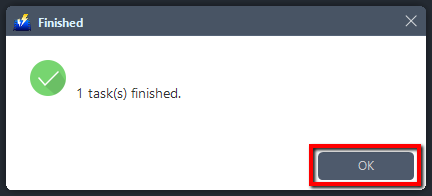
A pop-up window from the program will appear informing you that the conversion is complete. Click “OK” to open the folder of your saved converted audio files.
Conclusion:
AIFF audio format is not a common format that can be compatible with other devices. The best solution is to convert it into a different format. Worry no more, because all of your AIFF audio files will not be in the trash. You can still listen to it using the AIFF to MP3 converter.
VideoPower BLUE is a powerful converter that supports any conversion of video and audio formats with a video editing function enabling adding subtitles, applying watermarks, making MV and split-screen videos.
ZEUS series can do everything that VideoPower series can do and more, the interface is almost the same.
Check out NOW! Start easier with more affordable prices!




ZEUS Series
VideoPower brother products, start easier with more affordable prices!
| ZEUS BUNDLE 1 Year License ⇒ $29.99 |
ZEUS BUNDLE LITE 1 Year License ⇒ $19.99 |
ZEUS RECORD LITE 1 Year License ⇒ $9.98 |
ZEUS DOWNLOAD LITE 1 Year License ⇒ $9.98 |
||
| Screen Recorder | Screen&Audio Recording | ✔ | ✔ | ✔ | |
| Duration Setting, Schedule Recording | ✔ | ||||
| Video Downloader | Paste URL to download, batch download | ✔ | ✔ | ✔ | |
| Search/download video,browser detector | ✔ | ||||
| Music Recorder | Record music and get music ID3 tag info | ✔ | ✔ | ||
| Music search/download/record, CD Ripper/Creator, Audio Editor | ✔ | ||||
| Video Editor | Edit and convert videos, create slideshow | ✔ | |||
| Screen Capture | Capture screen, image editor | ✔ | |||