











Observers absorb 95% of a message when they look at it in the form of a video and 10% in reading a text. Video is proven to be more appealing, effective, and historic than any other medium. So if you are about to do a presentation and you’re bothered about maintaining the audience’s attention, including a video will make the presentation more lively and understandable.
PowerPoint is a program developed by Microsoft. It is capable of creating slideshows and presentations. This is mainly used for business and education and both formal and informal purposes.
If you want to include videos in your presentation, you can get incredible clips on YouTube. This website offers up to thousands of different videos with different topics and scenarios.
So, you now have a program to create a presentation and a website to get amazing videos. So the question is, how to put YouTube videos in Powerpoint offline? Simple answer to that is through VideoPower RED or ZEUS.
Table of Contents:
1. Best Software to Download YouTube Videos
2. Steps to Download YouTube Videos – Easiest Way
3. How to put YouTube Video on Powerpoint
ZEUS can do what VideoPower series can do and more with an almost similar interface.
Check out NOW! Start easier with more affordable prices!
1. Best Software to Download YouTube Videos
Downloading YouTube videos is one of the challenging parts because YouTube does not provide a download button. However, VideoPower RED will make downloading easier and fast. You won’t have to worry about downloading low-quality video and ruin the presentation because this software can download up to 4K resolution video. Plus! The internet connection is not necessary to maintain the quality of the downloaded video.
You can download the software by clicking the link below and keep on reading to learn more.
2. Steps to Download YouTube Videos – Easiest Way
VideoPower RED is capable of downloading videos by just copy-pasting the video URL.
Step 1: Copy the URL of the full HD video from the Share button.
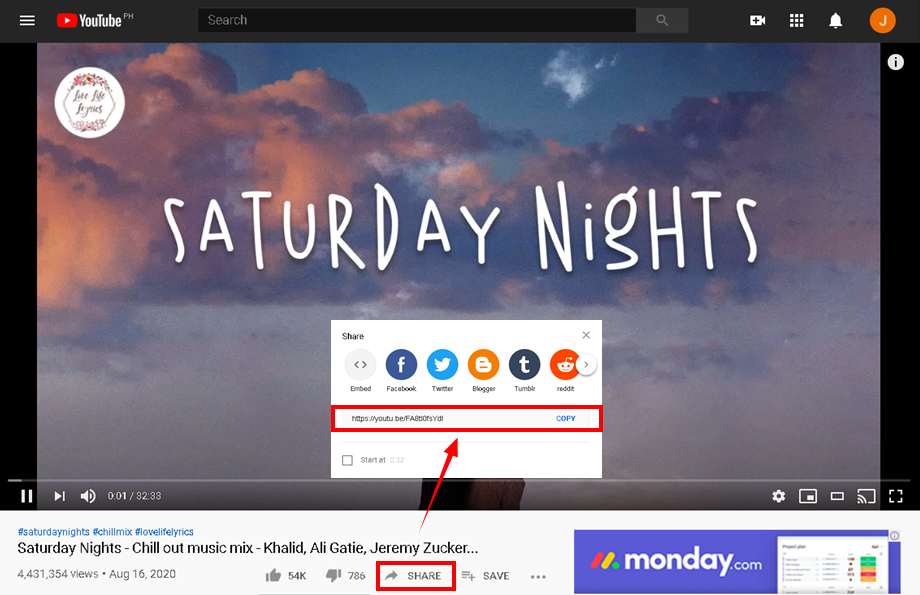
Copy the link of the YouTube video from the share button from your PC browser.
Step 2: Paste the copied URL to VideoPower RED
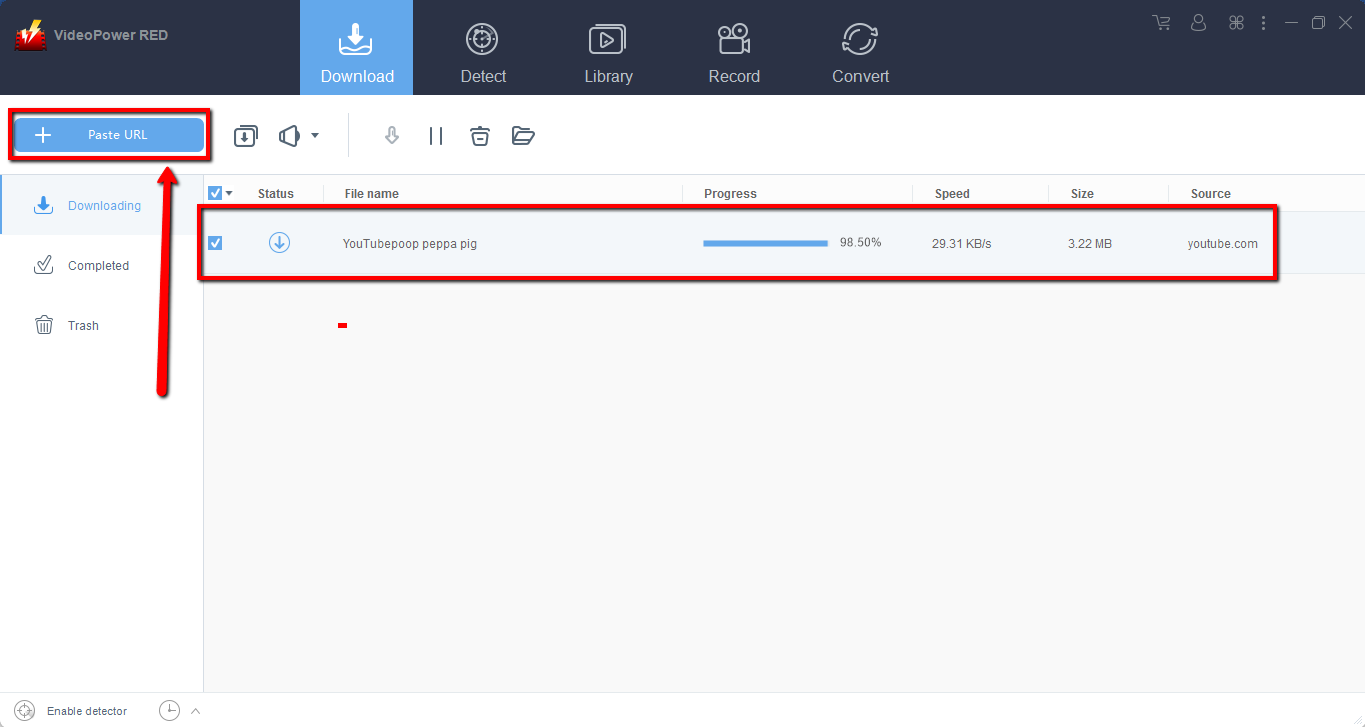
Run the program and paste the copied link by clicking the “ + Paste URL” button. After that, you will see the video downloading under the download control panel.
Step 3: Preview the downloaded Video
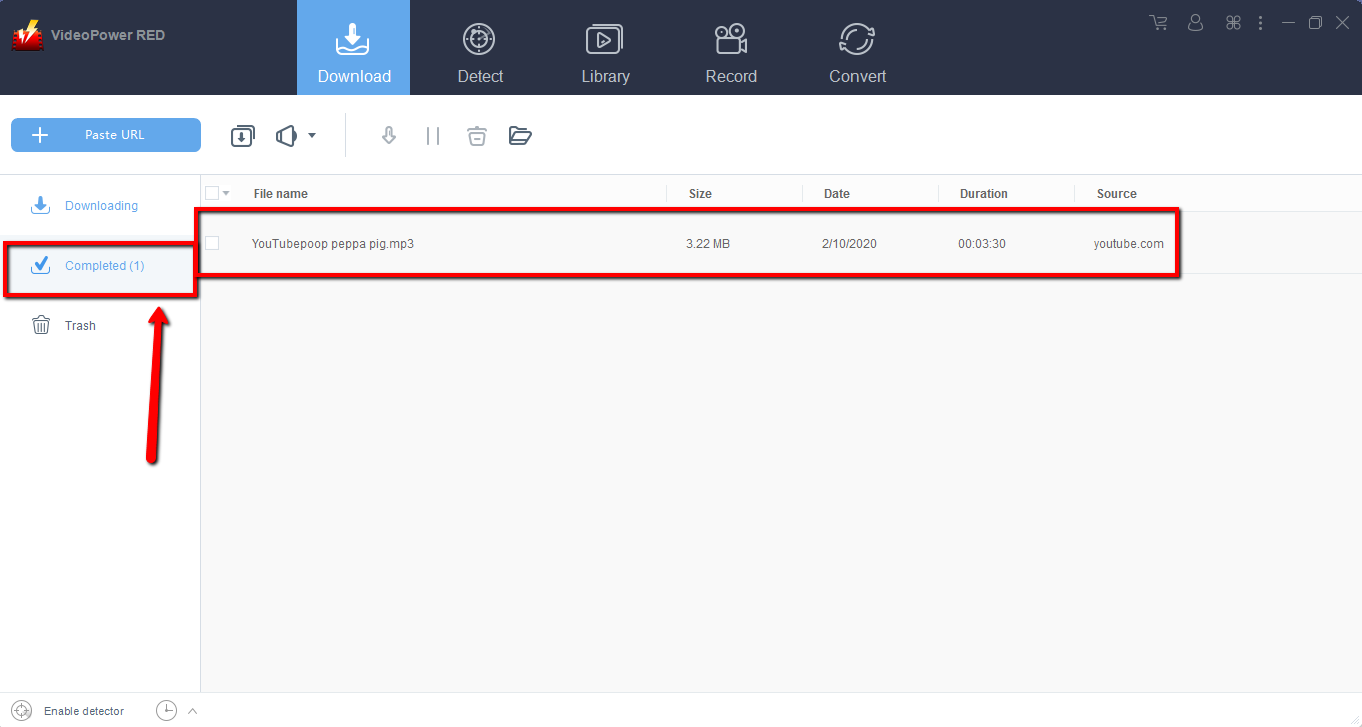
Wait for the download to finish, and then go to the “Completed” section to check the downloaded YouTube video. Double-click the downloaded file to preview.
3. How to put YouTube Video in Powerpoint Offline?
Step 1: Open the PowerPoint Program
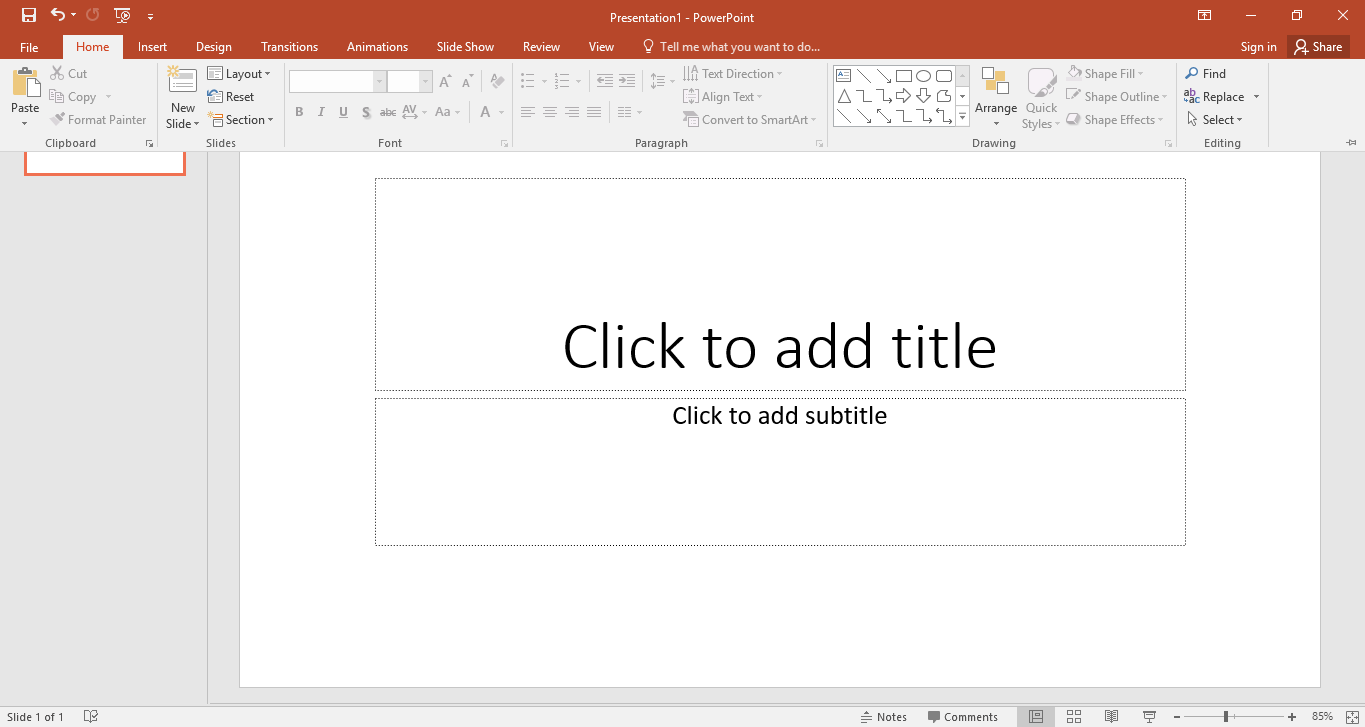
After you launch the Powerpoint, you can choose which slide you want to feature your video. Let that slide be enthusiastically solely to the video itself. If you try adding much text to the slide to beautify your slideshow, you may do so. But, it is wiser to continue using the same background or color design throughout the presentation.
Step 2: Click the Video Menu
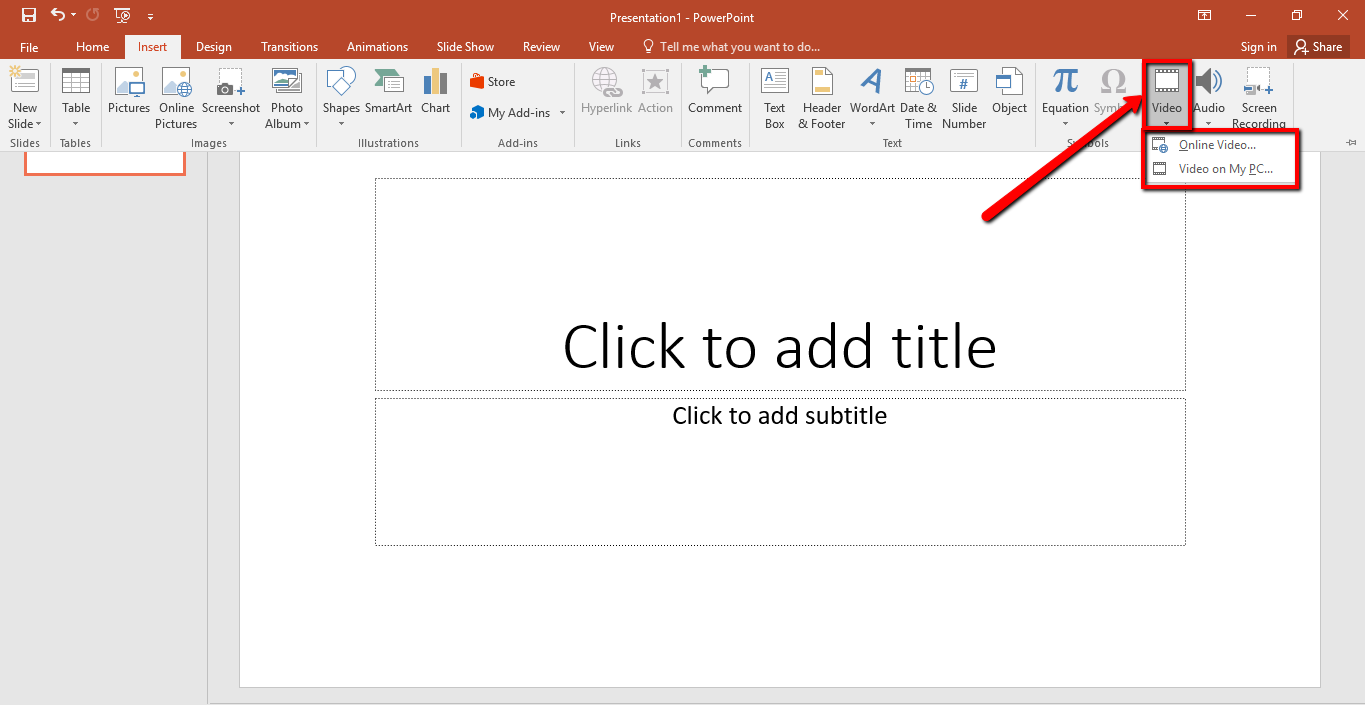
From your slide, click Insert from the second tab at the upper left menu bar right next to Home. A new menu bar will open up viewing all the Insert options. Navigate to the right and click on “Video”. In that drop-down menu, select “Video on MY PC” to import the downloaded file.
Step 3: Add the Video on the PowerPoint Slide
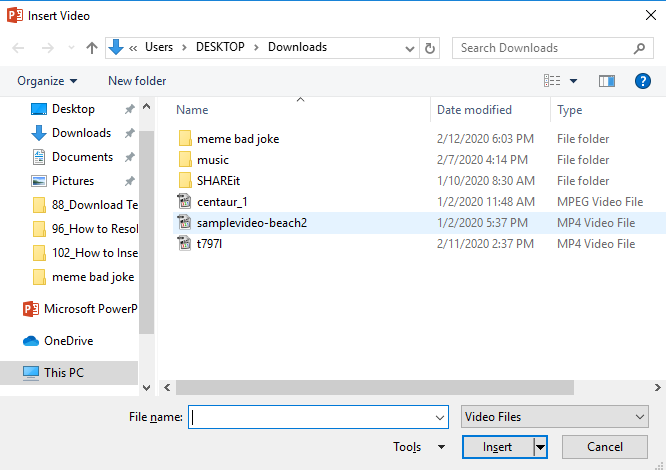
An insert video pop-up box will appear. From there, you can select the YouTube video you downloaded and click the “Insert” button to add the video to the slide.
Step 4: Edit the Video
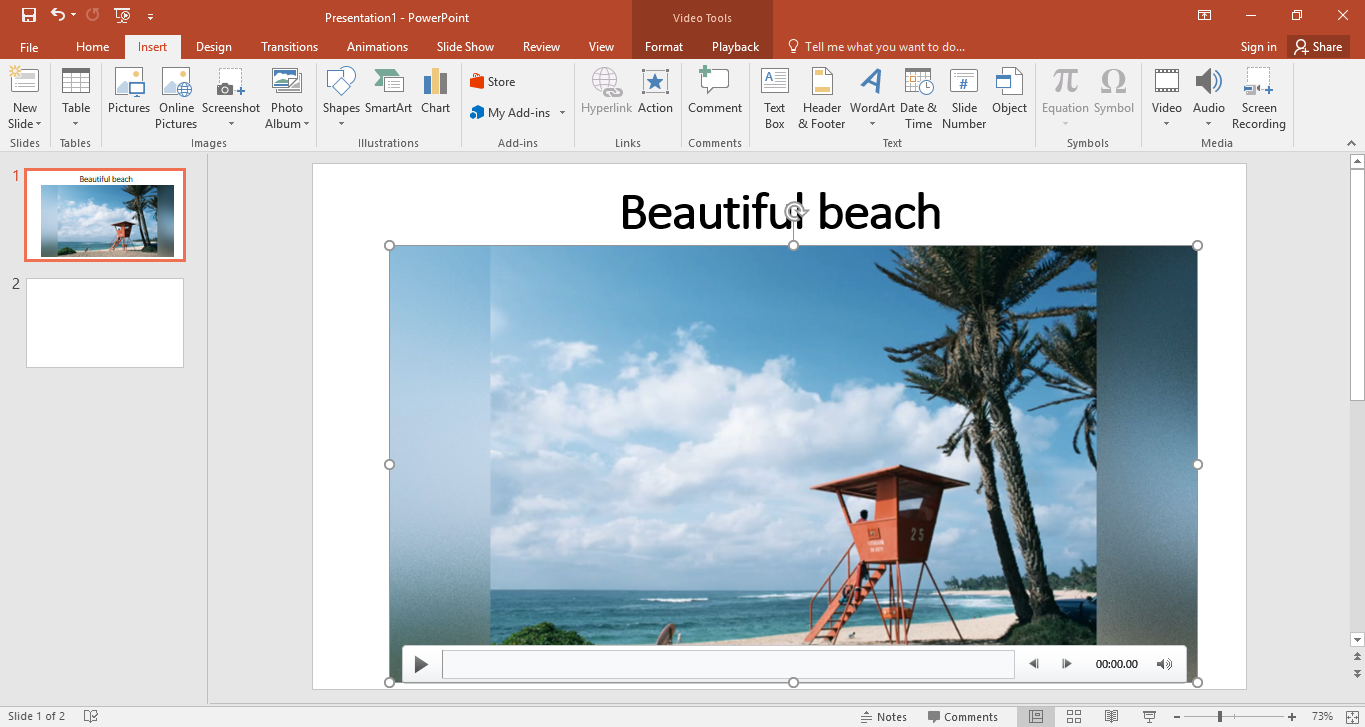
After you add the video, you can now play things around with the formatting of it. Click the “Format” menu to be directed to the editing menu bar. You can edit the brightness of the video shape, video border, add video effects, correct brightness, and crop video. Change the size of the video simply by dragging until you get it right as per need.
Conclusion:
By following the steps mentioned above, you can finish your task easier and be ready for your presentation. VideoPower RED plays a big role to solve your problem in inserting YouTube Videos into Powerpoint.
Moreover, this software is capable of downloading videos in HD, 4K, 8K resolution, and from thousands of different websites such as Dailymotion, iTunes, Metacafe, Vimeo, and many more.
ZEUS series can do everything that VideoPower series can do and more, the interface is almost the same.
Check out NOW! Start easier with more affordable prices!




ZEUS Series
VideoPower brother products, start easier with more affordable prices!
| ZEUS BUNDLE 1 Year License ⇒ $29.99 |
ZEUS BUNDLE LITE 1 Year License ⇒ $19.99 |
ZEUS RECORD LITE 1 Year License ⇒ $9.98 |
ZEUS DOWNLOAD LITE 1 Year License ⇒ $9.98 |
||
| Screen Recorder | Screen&Audio Recording | ✔ | ✔ | ✔ | |
| Duration Setting, Schedule Recording | ✔ | ||||
| Video Downloader | Paste URL to download, batch download | ✔ | ✔ | ✔ | |
| Search/download video,browser detector | ✔ | ||||
| Music Recorder | Record music and get music ID3 tag info | ✔ | ✔ | ||
| Music search/download/record, CD Ripper/Creator, Audio Editor | ✔ | ||||
| Video Editor | Edit and convert videos, create slideshow | ✔ | |||
| Screen Capture | Capture screen, image editor | ✔ | |||