











Vimeo is an American video-sharing website that allows users to stream, upload, and share videos. This platform focuses mainly on delivering high-definition videos. Unlike other streaming platforms, Vimeo is known to provide better video quality and sound quality. Most importantly, it is ad-free therefore you can enjoy watching videos without interruptions. Major productions even choose to use Vimeo as it provides better privacy and embedding options.
Vimeo is the best source to find highly produced artistic videos whereas Chrome browser is mostly used by viewers to stream Vimeo videos. Figuring out how to download Vimeo videos on Chrome is a good way to preserve high-quality content. To get a hold of these videos on your local storage, it is recommended that you use VideoPower RED.
ZEUS can do what VideoPower series can do and more with an almost similar interface.
Check out NOW! Start easier with more affordable prices!
Guide
How to Download Vimeo Videos on Chrome Browser
VideoPower RED is a flexible software that is built with advanced features but with a user-friendly interface. Through this software, you can download Vimeo videos just by copying and pasting the video URL. Its downloading speed is impressively fast while keeping the original quality of the video up to 8K. When talking about highest-definition videos, Vimeo and VideoPower RED are definitely a perfect match!
Method 1: Copy and Paste the Vimeo Video URL
Step 1: Copy the Vimeo video URL
Open the Vimeo video that you want to download on your Chrome browser. Right-click the web address and select “copy” from the options.

Step 2: Paste the copied Vimeo video URL
Open the VideoPower RED and click the “Paste URL” button.
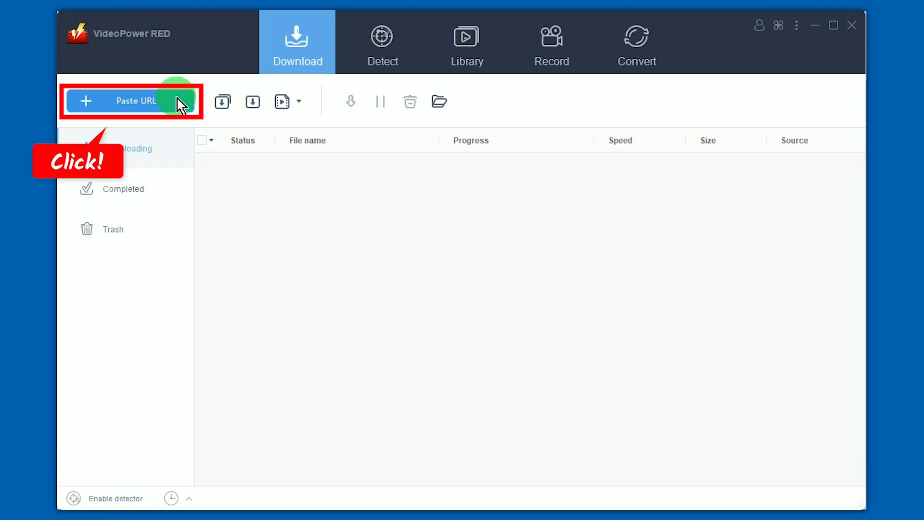
Step 3: Downloading the Vimeo video
The Vimeo video will be processed for download under the “Downloading” tab.

Step 4: Vimeo video download is completed
When the download is completed, it will be moved to the “Completed” tab. You may right-click the downloaded video to see more options or select “Play” to preview.

Method 2: Screen Recording the Vimeo Video on Chrome Browser
Step 1: Go to the “Record” function screen
Open the VideoPower RED and click the “Record” function menu.
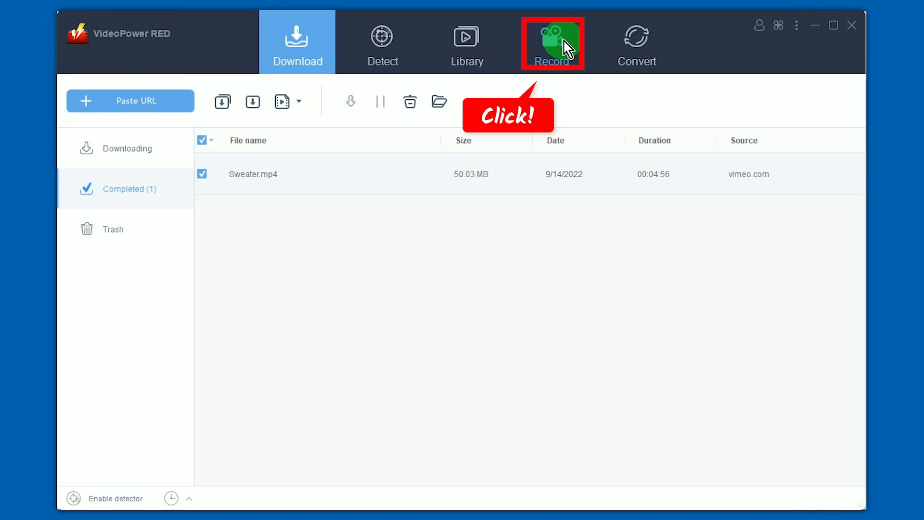
Step 2: Set the audio input
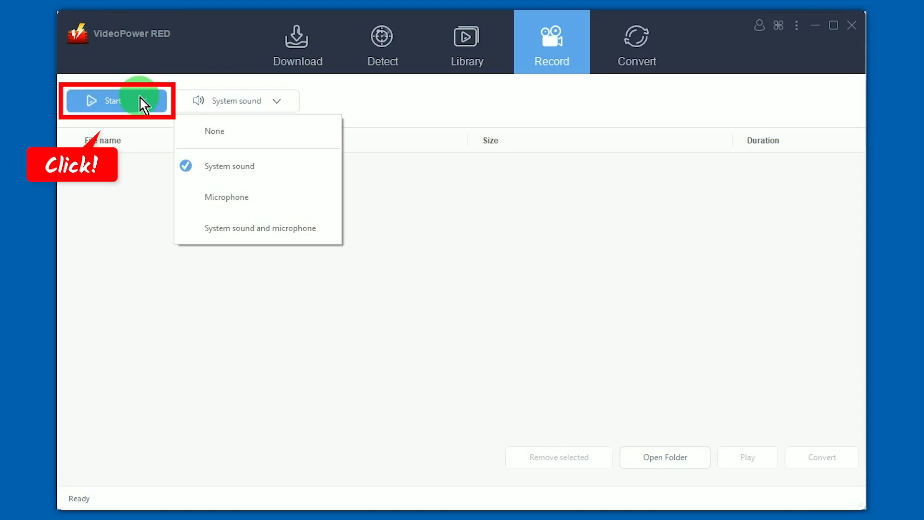
Click the “audio input” button to select a sound source.
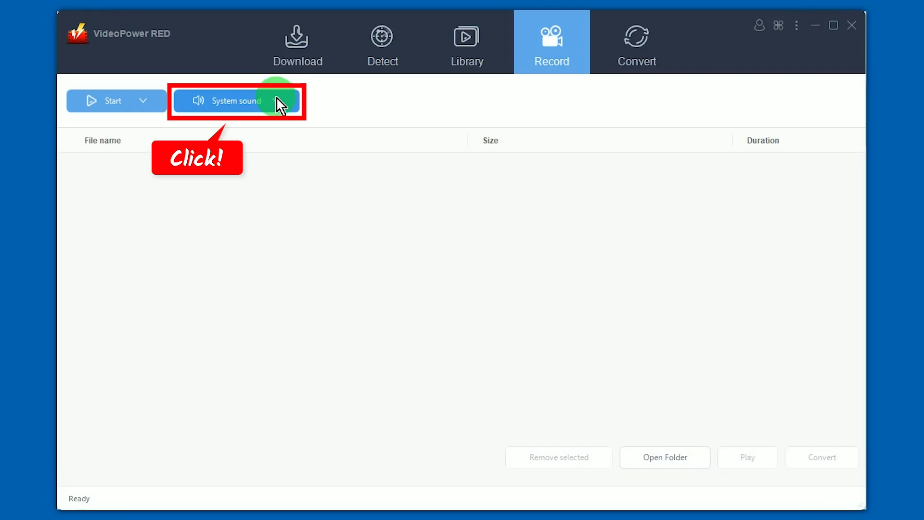
A list of options will drop down for your selection. In this example, we will set the audio input to “System sound”.
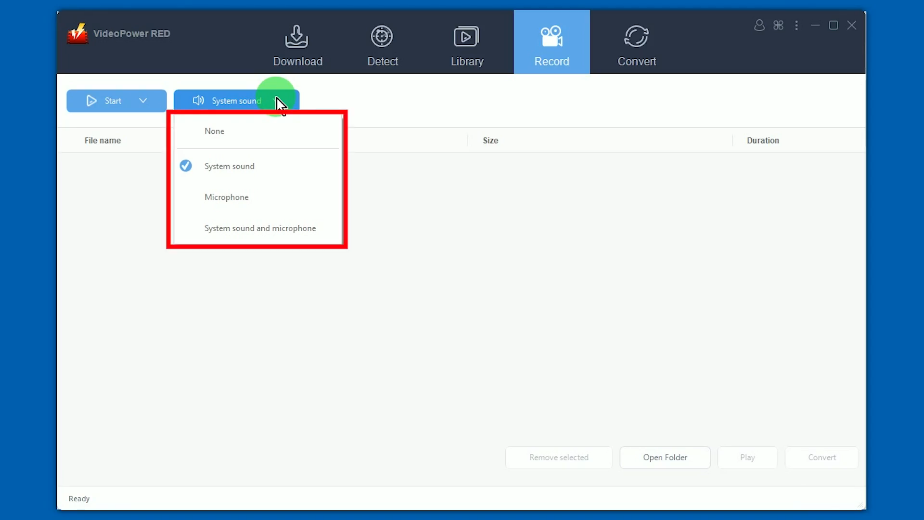
Step 3: Choose a recording mode
Click the “Record” button to choose a recording mode.
For repeated recording, the button will show as “Start” as it automatically sets the recently used recording mode. You can still change the recording mode by clicking the dropdown arrow.
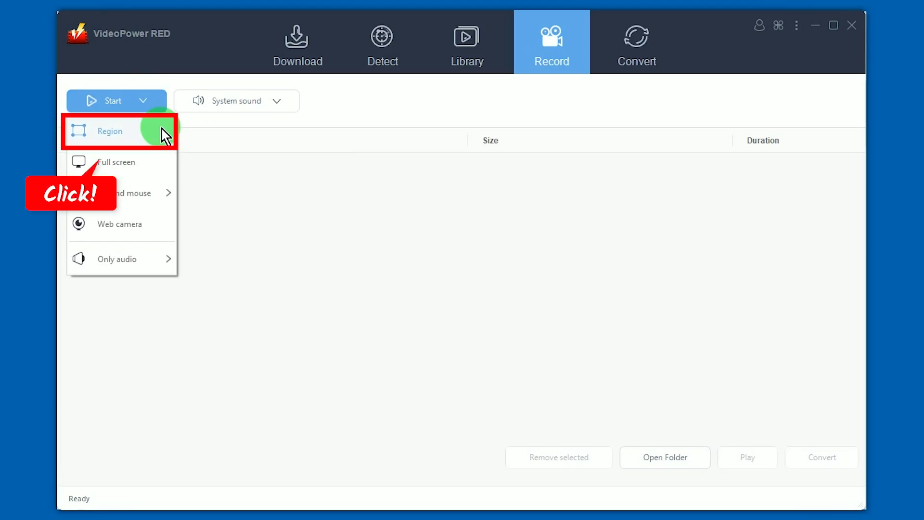
A list of all available recording modes will drop down. Select the option you preferred. In this example, we will set the recording mode to “Region”.
Step 4: Select a recording area
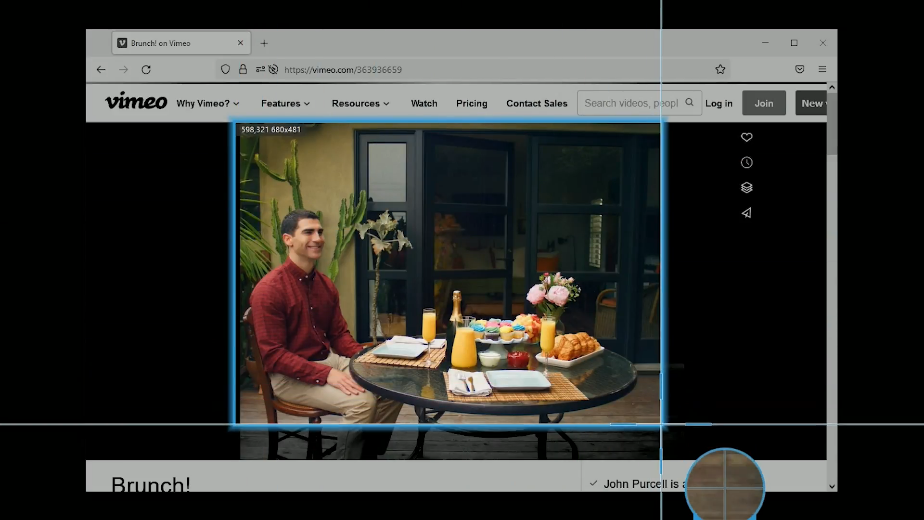
Drag the pointer to select a recording area.
Step 5: Begin the recording
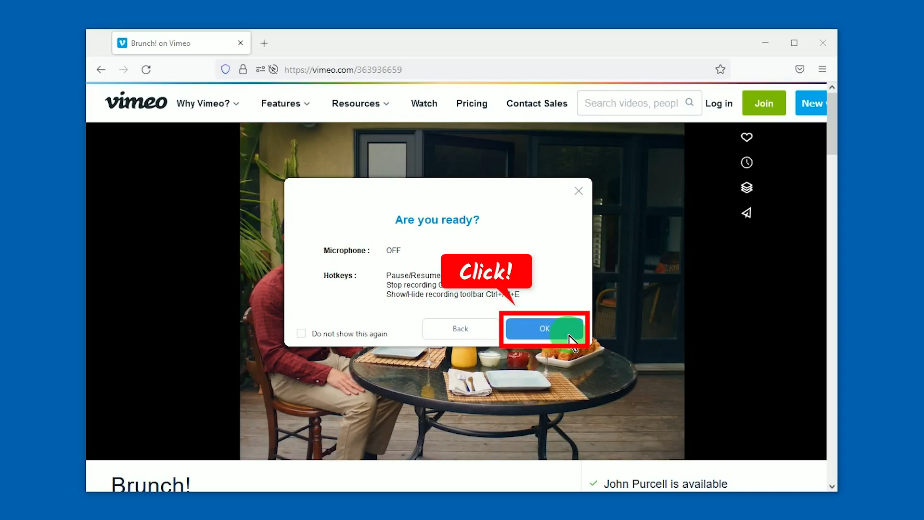
A confirmation will prompt asking if you are ready to begin the recording. Click “OK” to proceed.
After the countdown, the recording toolbar will pop up which indicates that the recording has begun. Play the Vimeo video to have it recorded.
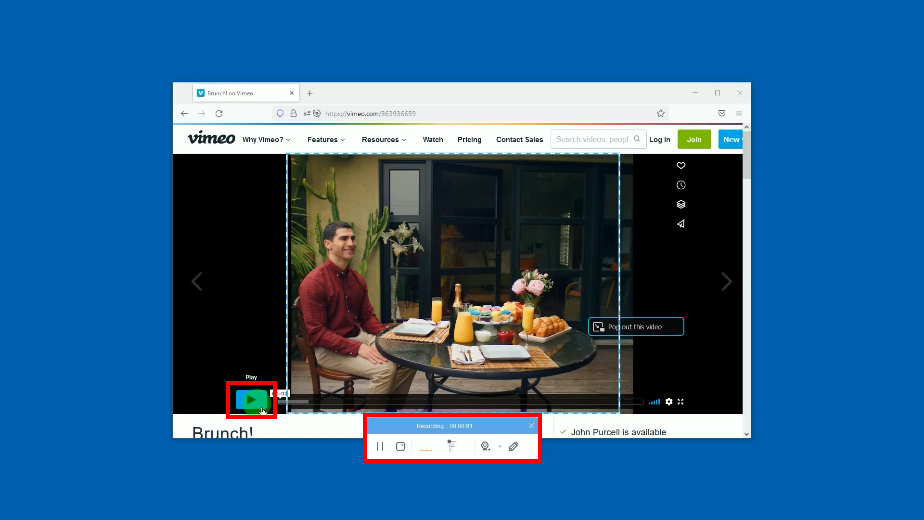
You may also enable the annotation function by clicking the “Pencil” icon on the recording toolbar.
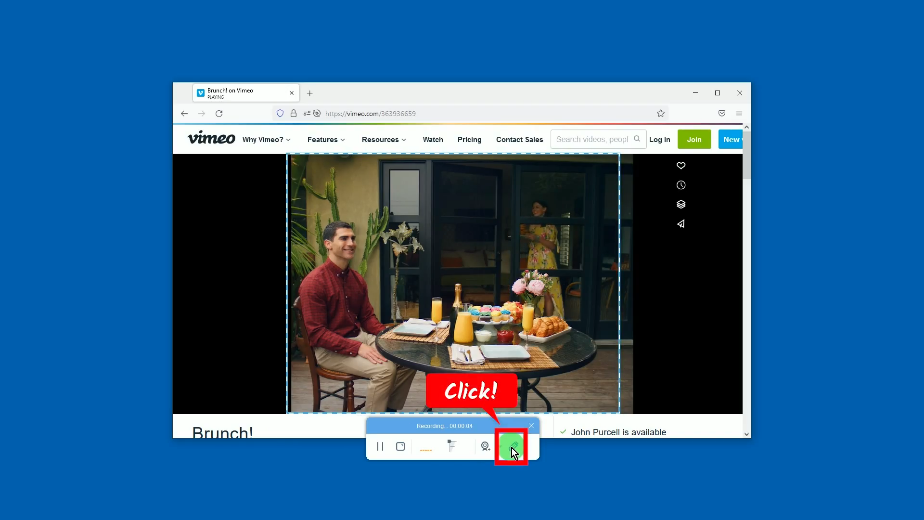
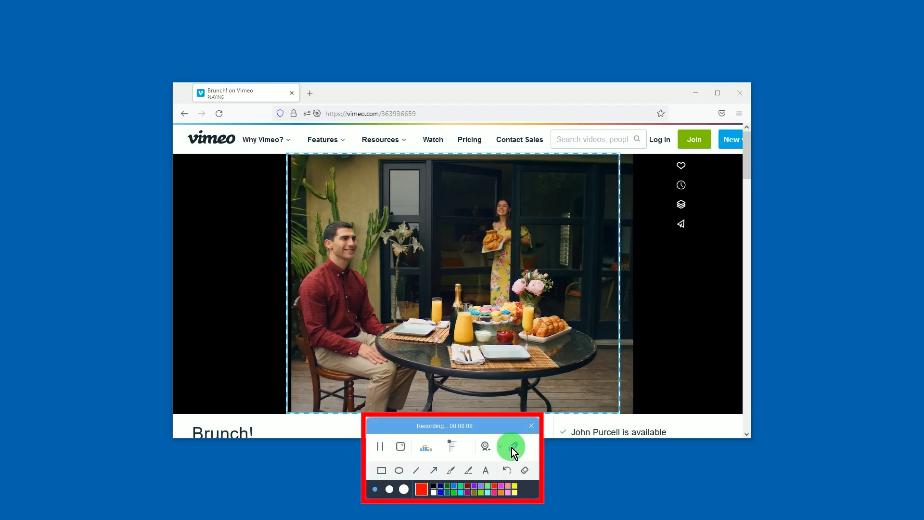
It will show all the annotation tools. Click any tool that you want to use.
When the recording is finished, click “Stop” to end the recording.

Step 6: Preview the recorded Vimeo video
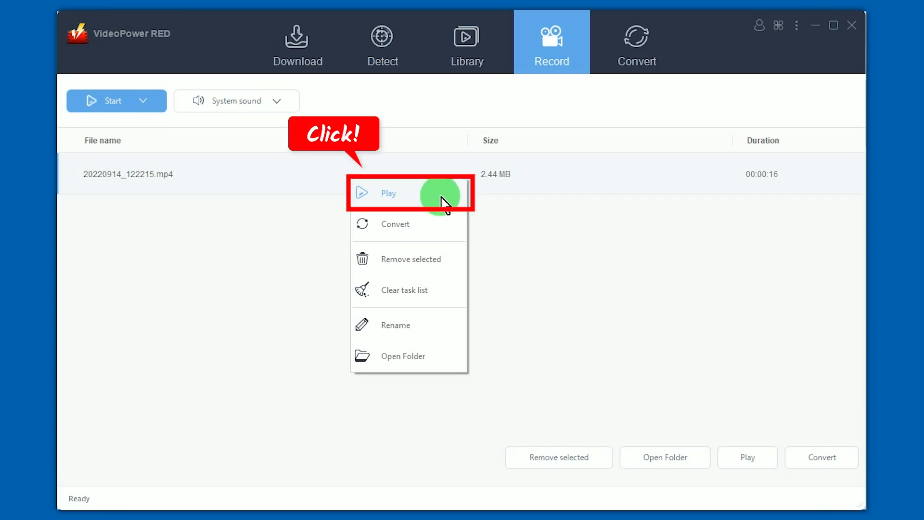
The recorded video will be added to your recording list. Right-click the recorded file and select “Play” from the options to preview the video.
Conclusion:
If you are someone who loves to stream videos, movies, and TV shows, then you are most likely familiar with Vimeo. It produces film-like videos compared to other streaming platforms. If you are in the mood to go on a movie marathon, then you will need to download Vimeo videos on Chrome browser to your PC.
When it comes to downloading videos, VideoPower RED has all the solutions. No need to do hassles because all you need is the Vimeo video URL. Just copy and paste and you will get the Vimeo video instantly. What makes it at par with other software is that it offers more than that. It has many added functions such as screen recording, video library, video editor, converter, and more!
ZEUS series can do everything that VideoPower series can do and more, the interface is almost the same.
Check out NOW! Start easier with more affordable prices!




ZEUS Series
VideoPower brother products, start easier with more affordable prices!
| ZEUS BUNDLE 1 Year License ⇒ $29.99 |
ZEUS BUNDLE LITE 1 Year License ⇒ $19.99 |
ZEUS RECORD LITE 1 Year License ⇒ $9.98 |
ZEUS DOWNLOAD LITE 1 Year License ⇒ $9.98 |
||
| Screen Recorder | Screen&Audio Recording | ✔ | ✔ | ✔ | |
| Duration Setting, Schedule Recording | ✔ | ||||
| Video Downloader | Paste URL to download, batch download | ✔ | ✔ | ✔ | |
| Search/download video,browser detector | ✔ | ||||
| Music Recorder | Record music and get music ID3 tag info | ✔ | ✔ | ||
| Music search/download/record, CD Ripper/Creator, Audio Editor | ✔ | ||||
| Video Editor | Edit and convert videos, create slideshow | ✔ | |||
| Screen Capture | Capture screen, image editor | ✔ | |||