











Udemy is an open online education website (MOOC). It has a special meaning because it’s a combination of “you” and “academy”, which means “your university”. Unlike other online education platforms, Udemy doesn’t only open various courses but also teaching opportunities. Therefore, you can be a teacher or a student if you want to with the help of this website. Users can learn any course on the platform at any time, or they can set up their own courses to introduce their expertise and knowledge to the world.
There are instances when you want to save these lesson videos to study offline without internet dependency. Unfortunately, not all videos are available for download. The best solution for this is to record Udemy videos. In this case, it is highly recommended to use VideoPower RED’s screen recorder tool.
ZEUS can do what VideoPower series can do and more with an almost similar interface.
Check out NOW! Start easier with more affordable prices!
Guide
How to Record Udemy Videos
VideoPower RED is a lightweight software with professional features. This includes its screen recorder functionality. It allows you to record online videos without quality loss. You can also add highlights and emphasis through its live annotation tool. Additionally, you can enjoy its other functions such as an embedded browser, video library, video editor, and more!
How to Record Udemy Videos
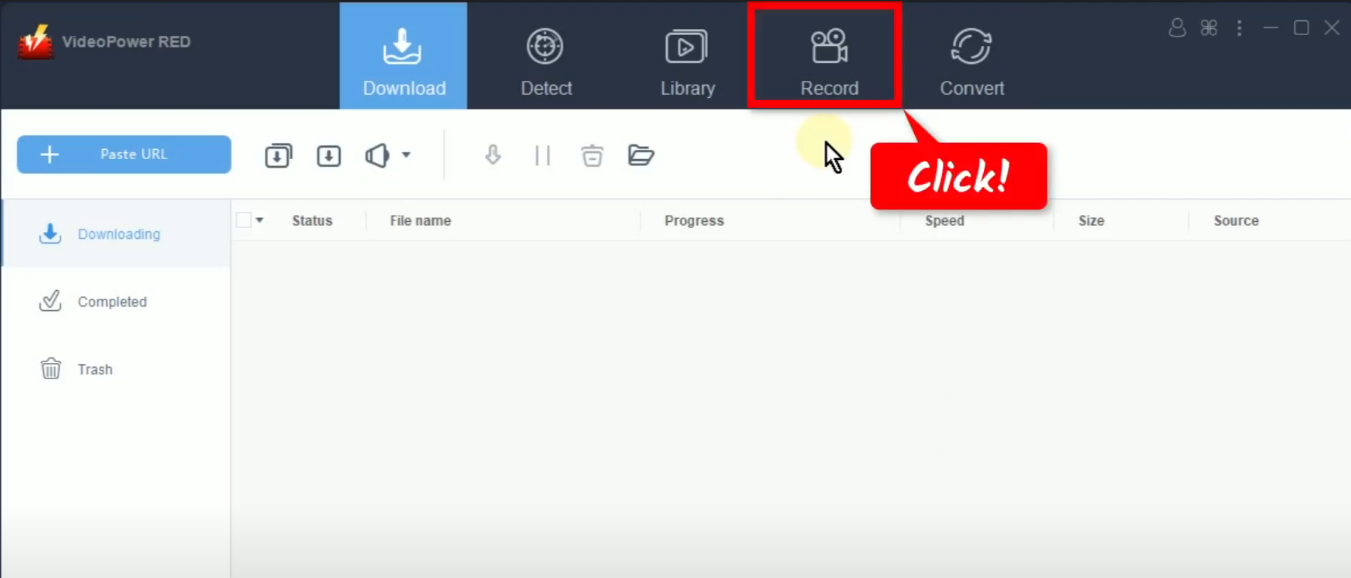
Step 1: Go to the “Record” function screen
Open the VideoPower RED and click the “Record” function menu.
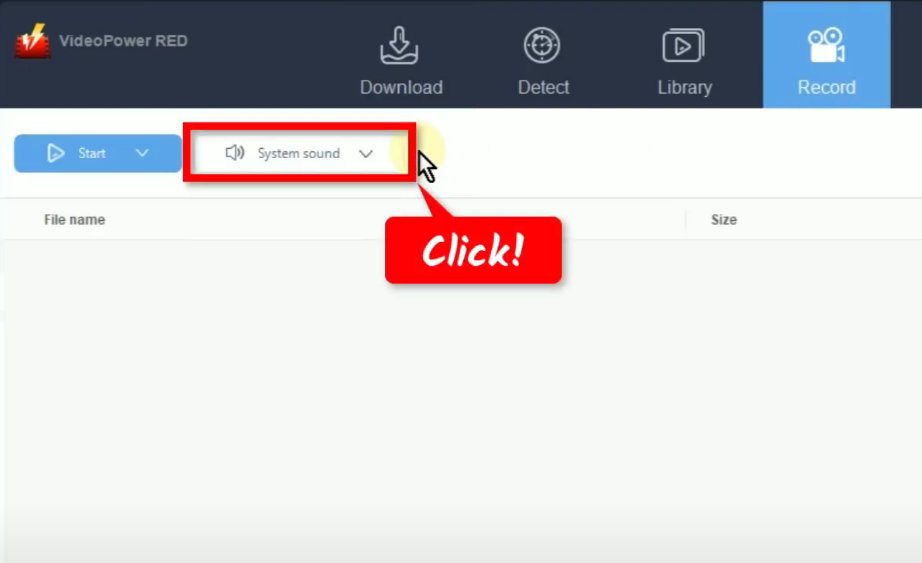
Step 2: Set the audio input
On the “Record” function screen, click the “Audio input” button. By default, it is set to “System sound”.
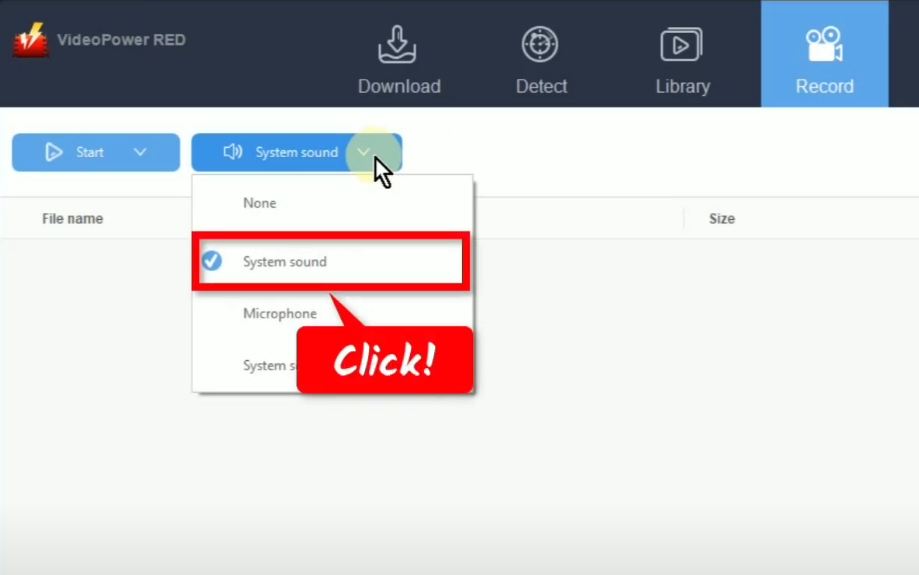
Then select your preferred sound source from the options. In this example, we will use the default audio input (System sound) to avoid external noises when recording.
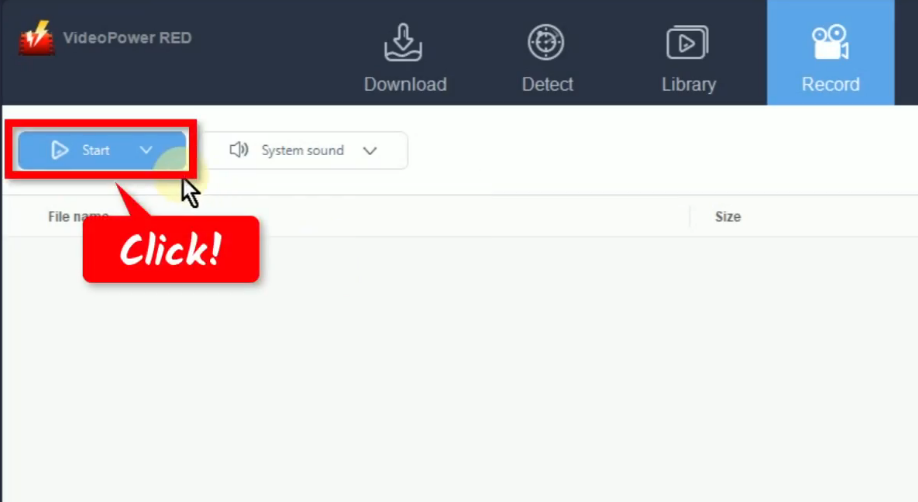
Step 3: Choose a recording mode
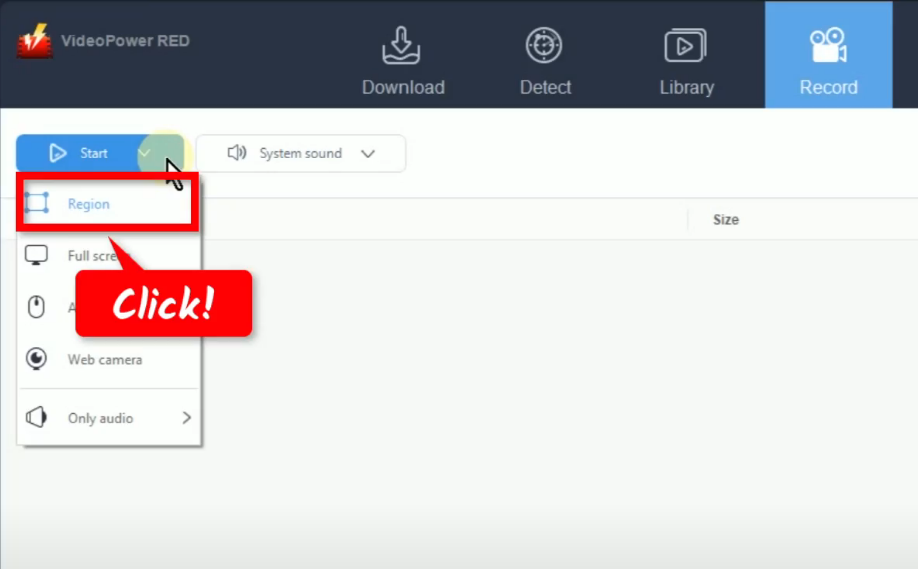
To begin with the recording, you need to choose a recording mode first. To do this, click the “Record” button. For repeated recording, the button will show as “Start”. This is because the software automatically set the recording mode based on the recently used. You can still change it by clicking the down arrow on the button.
A list of options will drop down for your selection. In this example, we will set the recording mode to “Region”.
Step 4: Select a recording area
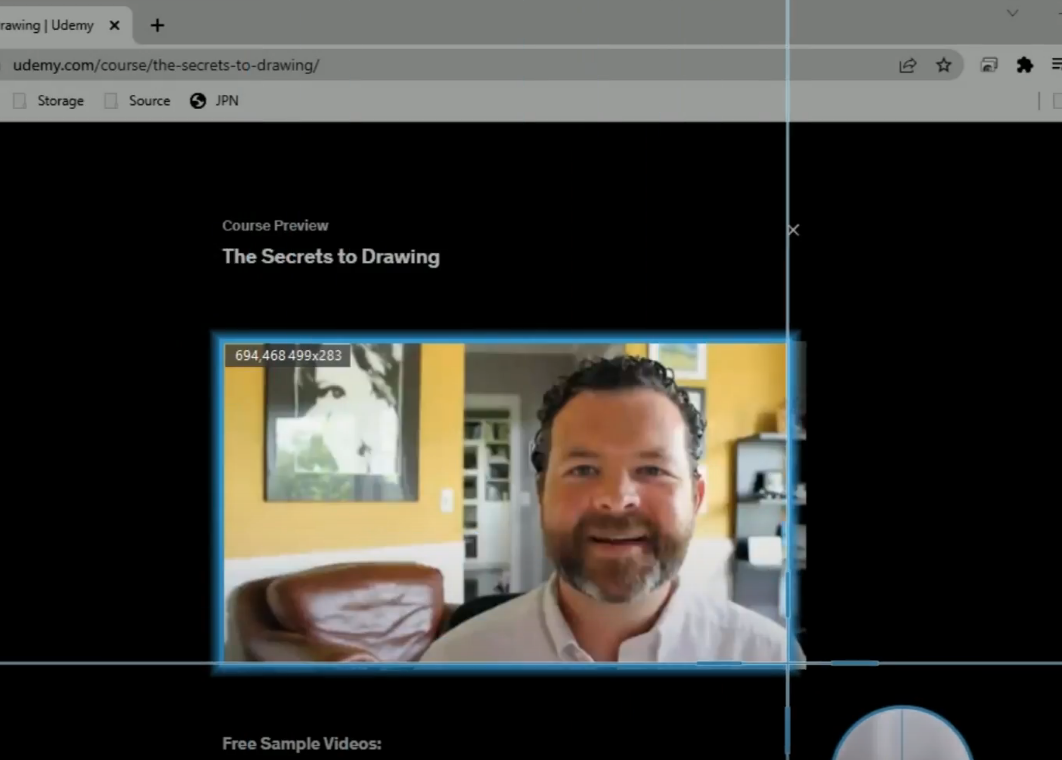
Drag the pointer to select a recording area.
A list of options will drop down for your selection. In this example, we will set the recording mode to “Region”.
Step 5: Begin the Udemy video recording
A confirmation will prompt asking if you are ready to begin the recording.

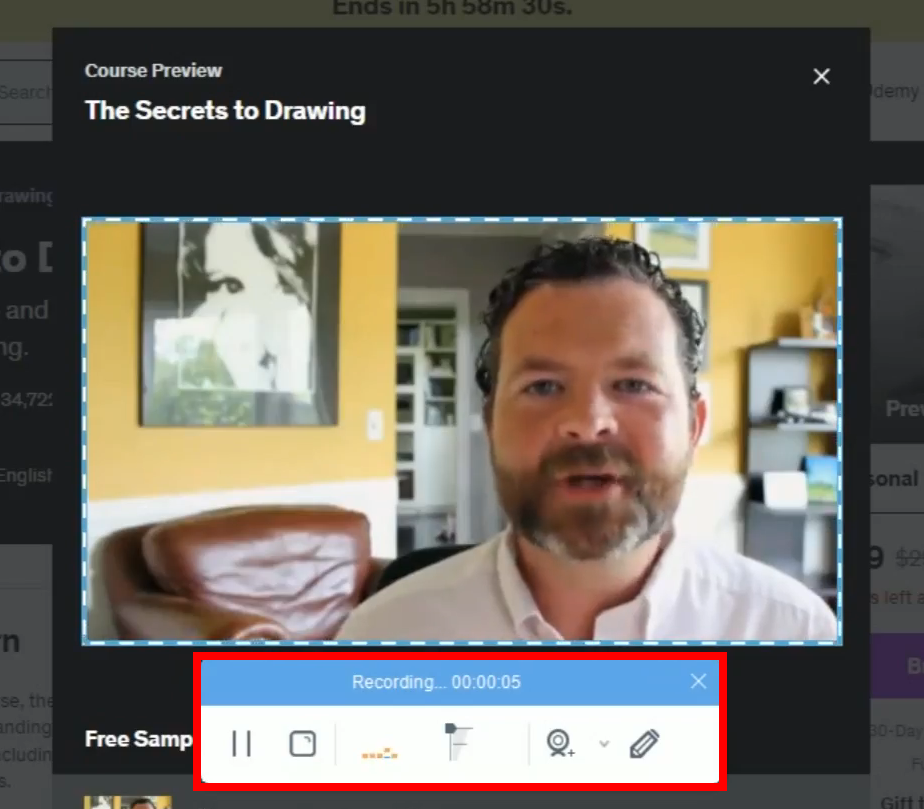
The recording toolbar will pop up which indicates that the recording has begun. Play the video to have it recorded.
Step 6: Finished recording the Udemy video
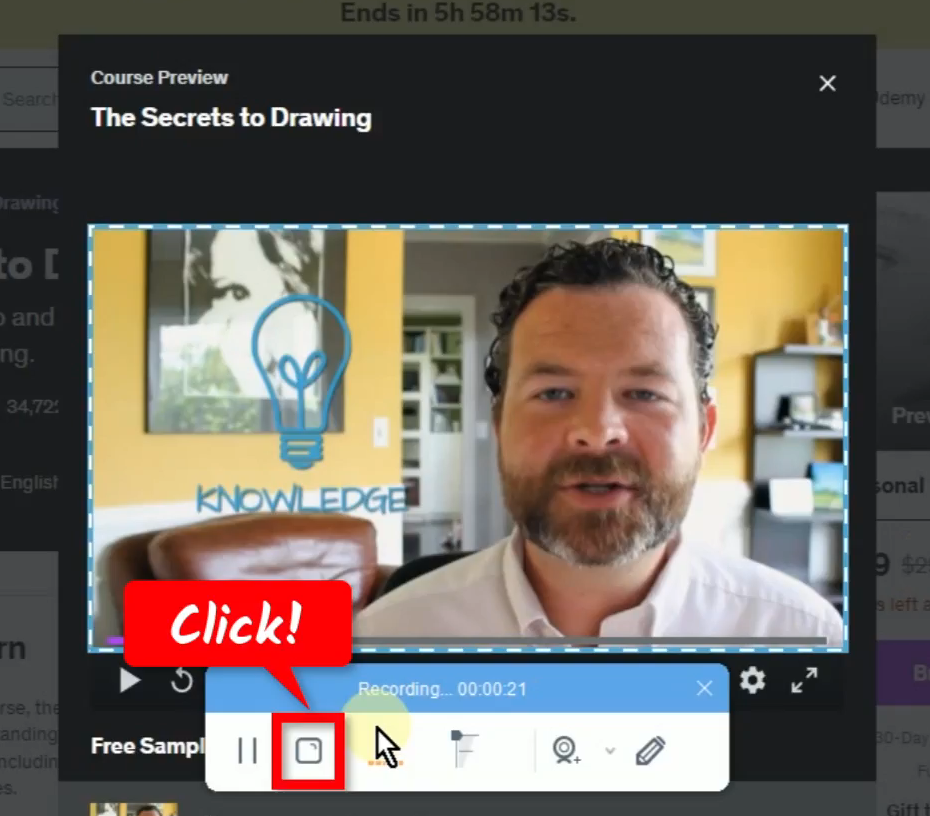
When the recording is finished, click “Stop” to end the recording.
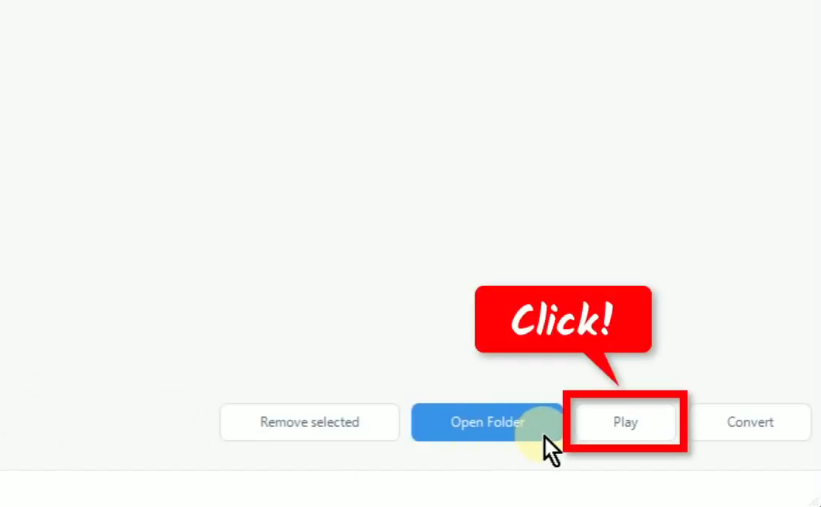
You can preview the recorded Udemy video by selecting the recorded file and click “Play” at the bottom.
Conclusion:
Many users wanted to earn extra money by working online. With Udemy, this matter is possible. They can be a teacher if they want and earn extra money at the same time.
Udemy is one of the best learning platforms online which offers great courses with effective lesson plans. It has several videos for different courses that you can watch to study.
Whether a learner or a teacher who wants to share ideas, saving videos offline gives many conveniences. Since some videos are not available for download, you can opt to record Udemy videos using VideoPower RED. This software is capable of recording videos in high quality with many additional features to enjoy!
ZEUS series can do everything that VideoPower series can do and more, the interface is almost the same.
Check out NOW! Start easier with more affordable prices!




ZEUS Series
VideoPower brother products, start easier with more affordable prices!
| ZEUS BUNDLE 1 Year License ⇒ $29.99 |
ZEUS BUNDLE LITE 1 Year License ⇒ $19.99 |
ZEUS RECORD LITE 1 Year License ⇒ $9.98 |
ZEUS DOWNLOAD LITE 1 Year License ⇒ $9.98 |
||
| Screen Recorder | Screen&Audio Recording | ✔ | ✔ | ✔ | |
| Duration Setting, Schedule Recording | ✔ | ||||
| Video Downloader | Paste URL to download, batch download | ✔ | ✔ | ✔ | |
| Search/download video,browser detector | ✔ | ||||
| Music Recorder | Record music and get music ID3 tag info | ✔ | ✔ | ||
| Music search/download/record, CD Ripper/Creator, Audio Editor | ✔ | ||||
| Video Editor | Edit and convert videos, create slideshow | ✔ | |||
| Screen Capture | Capture screen, image editor | ✔ | |||