











There are users complaining that they downloaded video in F4F format that cannot be played by most of the media players and mobile devices and now they want to exclude F4F when downloading videos.
Avoiding it is a piece of cake if you download the video using VideoPower RED or ZEUS, an amazing, hassle-free, and trusted software that is able to detect the video streaming on the web and add it to download automatically.
Download VideoPower RED in the Link provided below and follow through the guide on how to exclude F4F in downloading a video.
ZEUS can do what VideoPower series can do and more with an almost similar interface.
Check out NOW! Start easier with more affordable prices!
Method 1: Exclude F4F file and Download Video
Step 1: Change settings
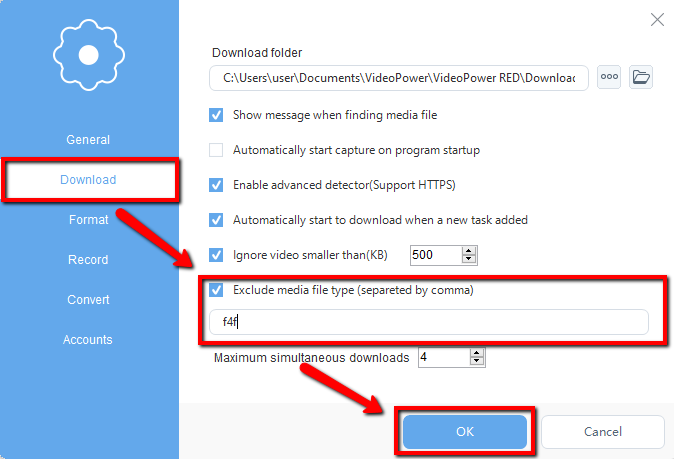
Click settings and navigate to the “Download” tab and scroll down to the bottom. Find “Exclude media file type (separated by comma)”. Check it and enter F4F in the box. Click the “OK” button, then the software won’t download F4F video files anymore.
Step 2: Paste URL and download the video
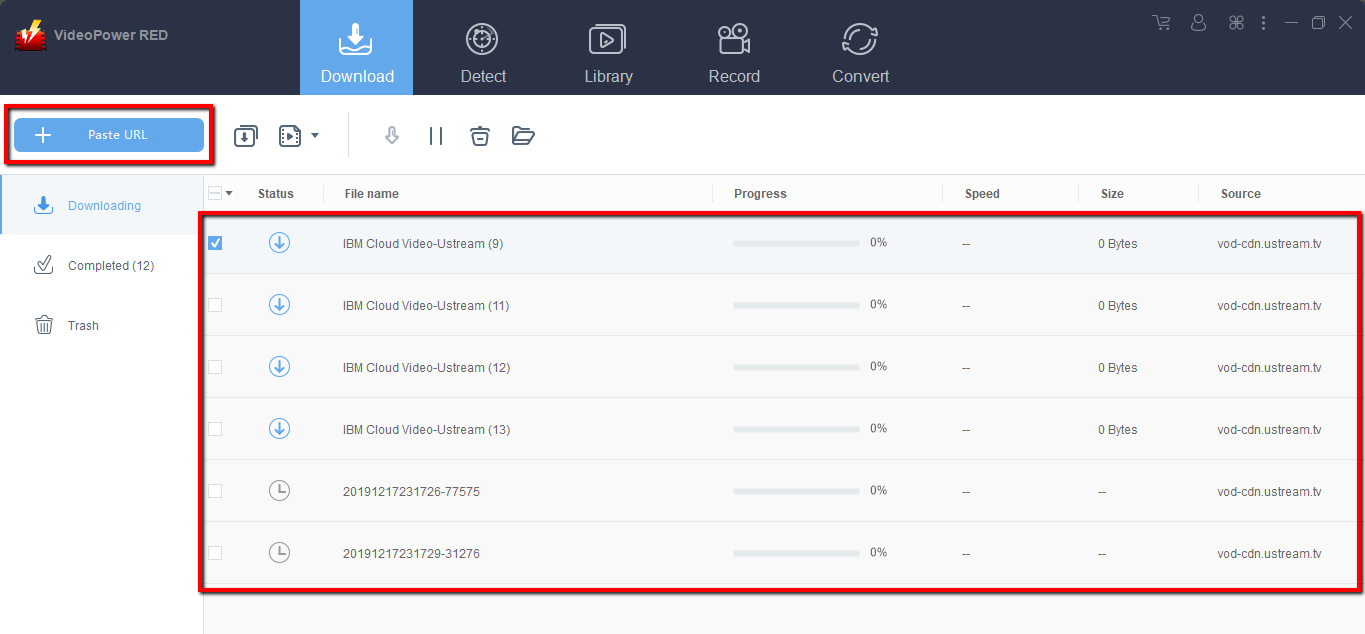
Copy the link of the video from your Windows browser and then paste it into the program by clicking the “+ Paste URL” button. After that, you will see the video is downloading in the download control panel.
Step 3: Preview the downloaded video
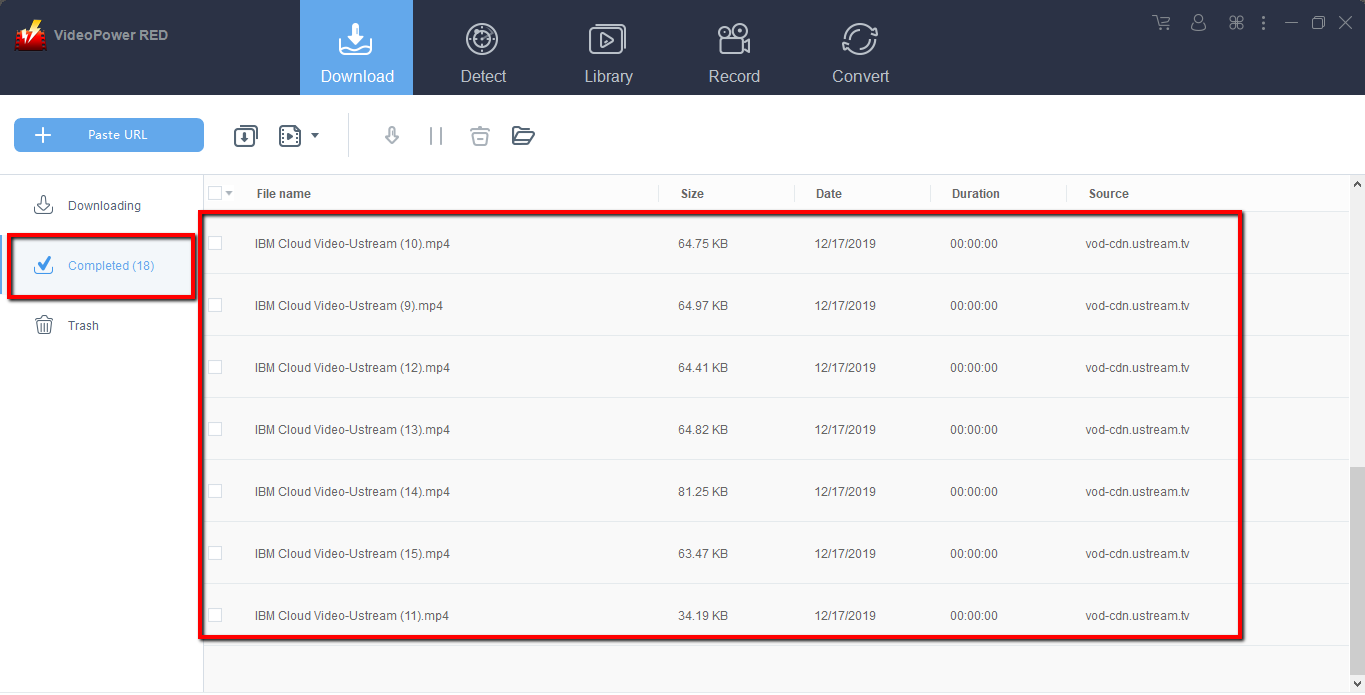
Wait for the download to finish, and then go to the “Completed” section to find the downloaded video. Double click it to preview.
Method 2: Record the Video
Step 1: Set recording mode and start recording
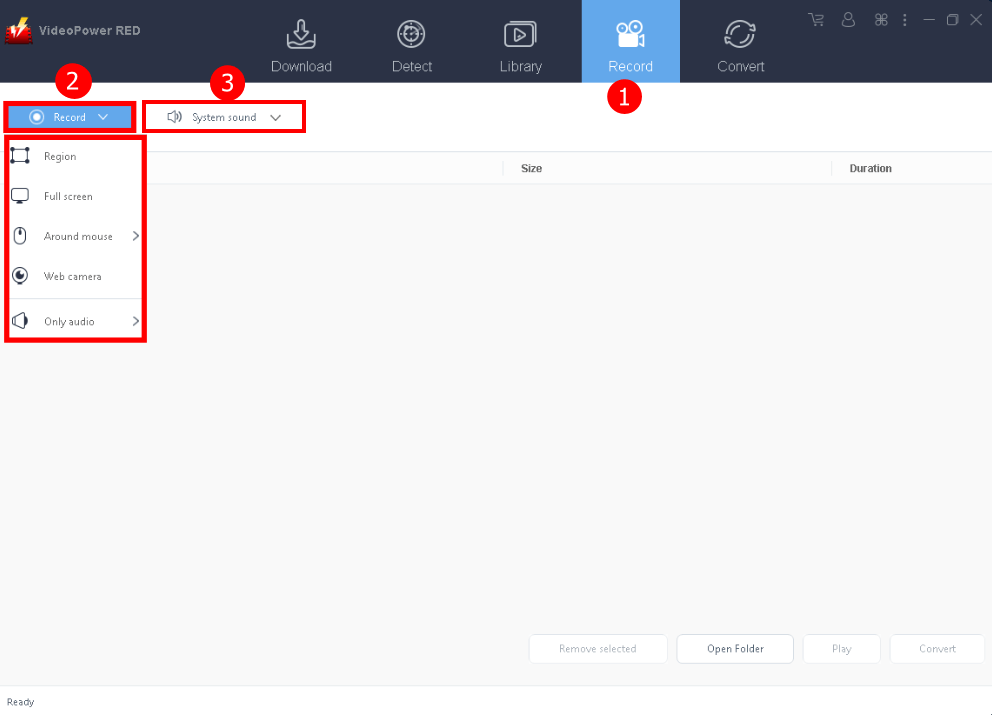
1. Go to the “Record” window.
2. Select recording mode by clicking the “Record” drop-down button. It is recommended to use “Full-screen” or “Region” in recording a video.
3. Click the “Audio input” button and choose “System sound” as the default sound source.
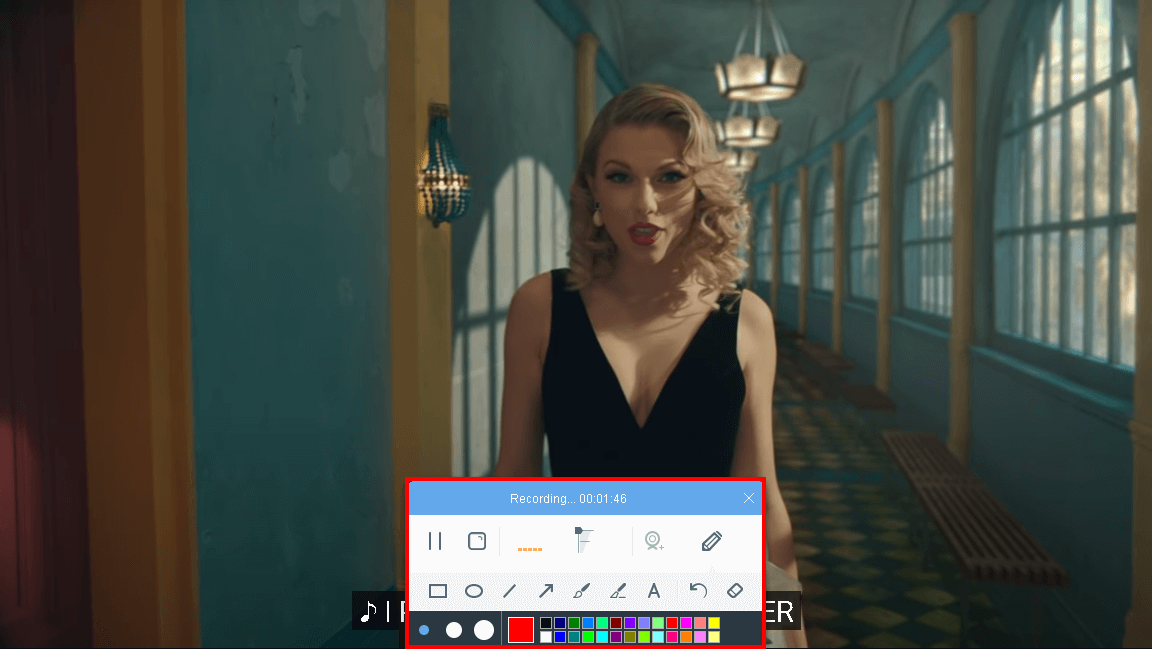
The toolbar will appear, you can add annotations, text, and arrows to add beauty and emphasize important details if you want. You can adjust the volume or overlay your web camera.
After you record. Click the “Stop” button.
Step 2: Save the recorded file
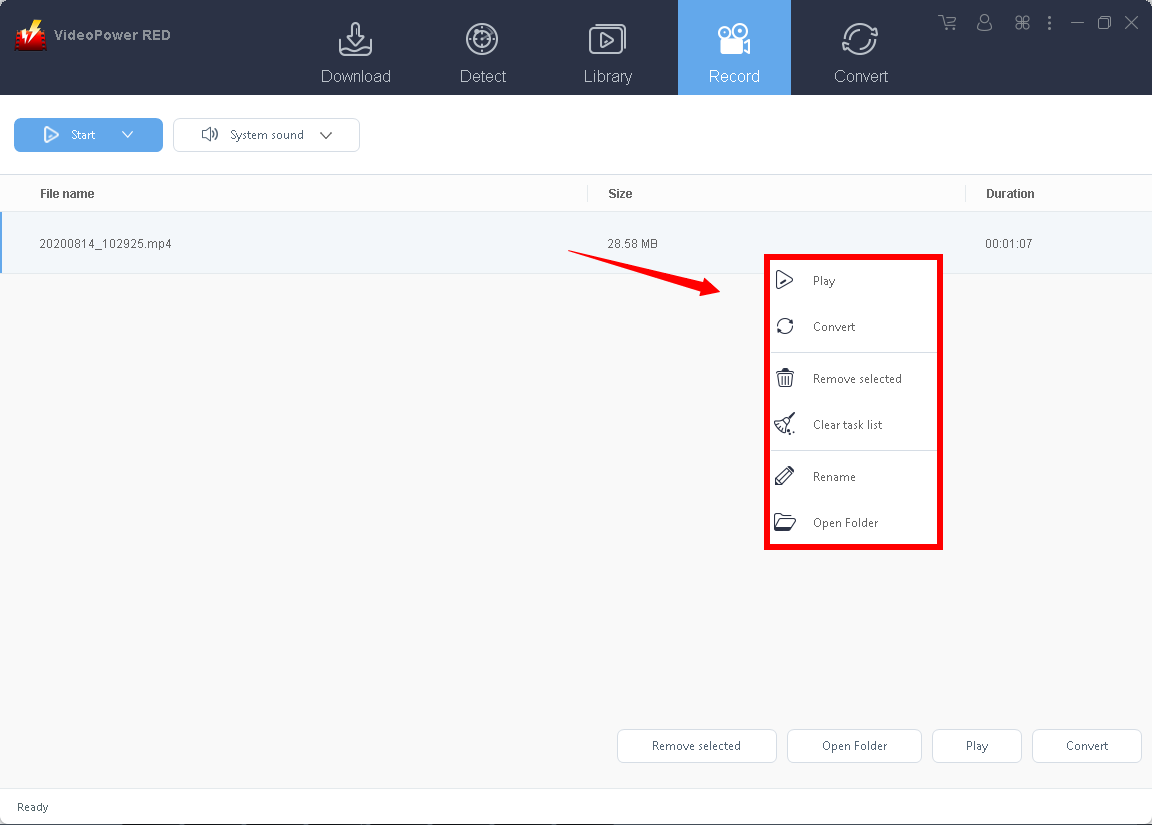
After you stop the recording, you will see the file on its main interface. Right-click to do more operation and double click the file to watch it.
Conclusion:
Downloading videos from sites that requires many things is already a hassle, what more if the file you downloaded cannot be played after trying everything just to download the file like the F4F file.
A third-party tool can answer this kind of concern. Thus, VideoPower RED lets you avoid downloading the F4F video without any hassle.
ZEUS series can do everything that VideoPower series can do and more, the interface is almost the same.
Check out NOW! Start easier with more affordable prices!




ZEUS Series
VideoPower brother products, start easier with more affordable prices!
| ZEUS BUNDLE 1 Year License ⇒ $29.99 |
ZEUS BUNDLE LITE 1 Year License ⇒ $19.99 |
ZEUS RECORD LITE 1 Year License ⇒ $9.98 |
ZEUS DOWNLOAD LITE 1 Year License ⇒ $9.98 |
||
| Screen Recorder | Screen&Audio Recording | ✔ | ✔ | ✔ | |
| Duration Setting, Schedule Recording | ✔ | ||||
| Video Downloader | Paste URL to download, batch download | ✔ | ✔ | ✔ | |
| Search/download video,browser detector | ✔ | ||||
| Music Recorder | Record music and get music ID3 tag info | ✔ | ✔ | ||
| Music search/download/record, CD Ripper/Creator, Audio Editor | ✔ | ||||
| Video Editor | Edit and convert videos, create slideshow | ✔ | |||
| Screen Capture | Capture screen, image editor | ✔ | |||