











Vimeo is an American video-sharing platform that focuses on delivering high-definition videos. Usually, this platform is commonly used for businesses. Although you need to pay for a premium account, you will get a higher-quality environment in return.
This platform allows uploading 1280 x 720,1980 x 1080 HD videos, unlike other similar video-sharing sites. After uploading, Vimeo will automatically transcode the video into HD and allows users to upload 500MB of HD or regular videos per month. Also, users can customize the display size of the video.
The source video file can be downloaded freely, however, not all videos are available for download. So if you want to download Vimeo videos in FULL HD(1980×1080), you have to look for another way. In this case, we recommend that you use VideoPower RED. It preserves the quality of the video and lets you download Vimeo HD video to watch them for offline purposes.
ZEUS can do what VideoPower series can do and more with an almost similar interface.
Check out NOW! Start easier with more affordable prices!
Guide
How to Download Vimeo HD Video
How to Download Vimeo HD Videos
Step 1: Copy the Vimeo video URL
Open the Vimeo video to download on your PC browser and copy its URL from the top address bar.

Step 2: Set the output quality to “HD”
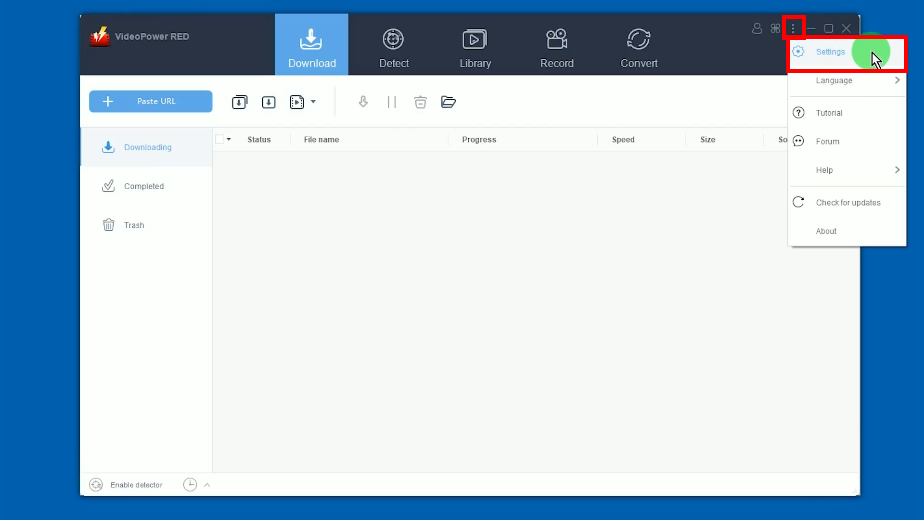
Open the VideoPower RED and click the 3 dots icon at the very right part of the interface. Them select “Settings” from the options.
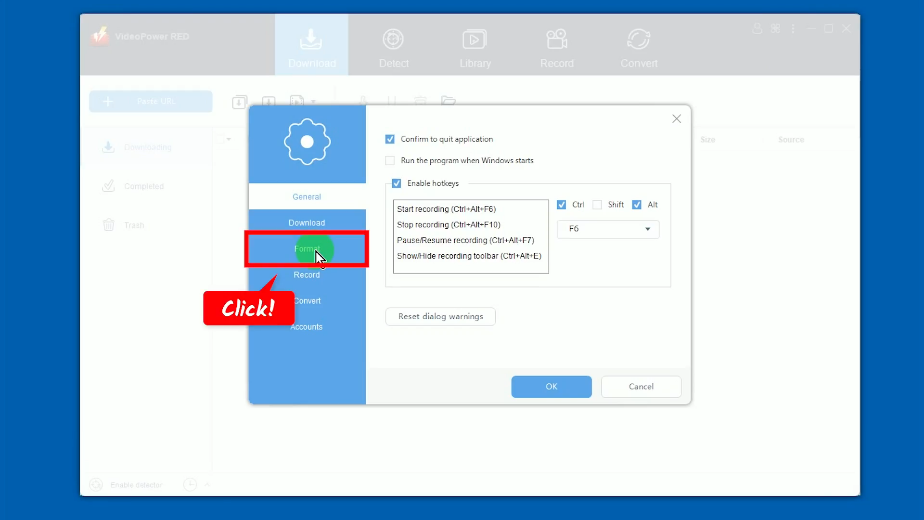
The settings window will be opened. Go to the “Format” tab.
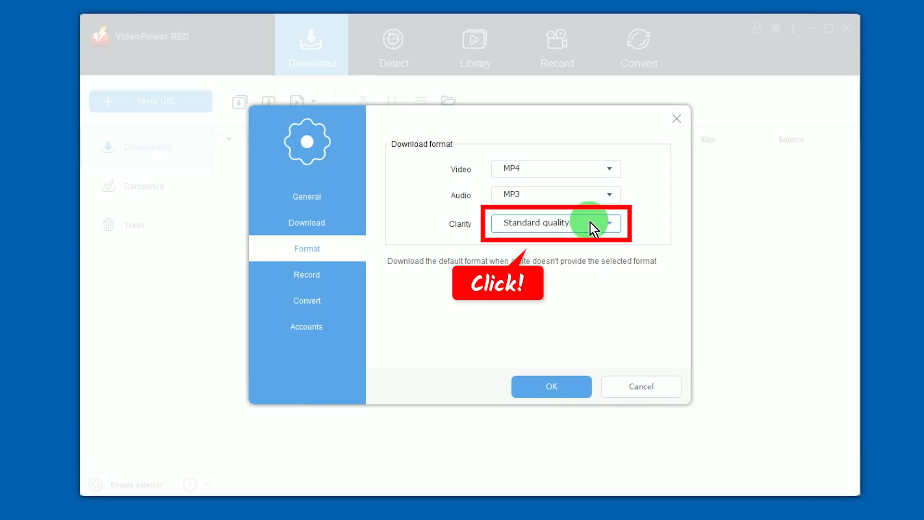
Click the drop-down menu of the “Clarity” option.
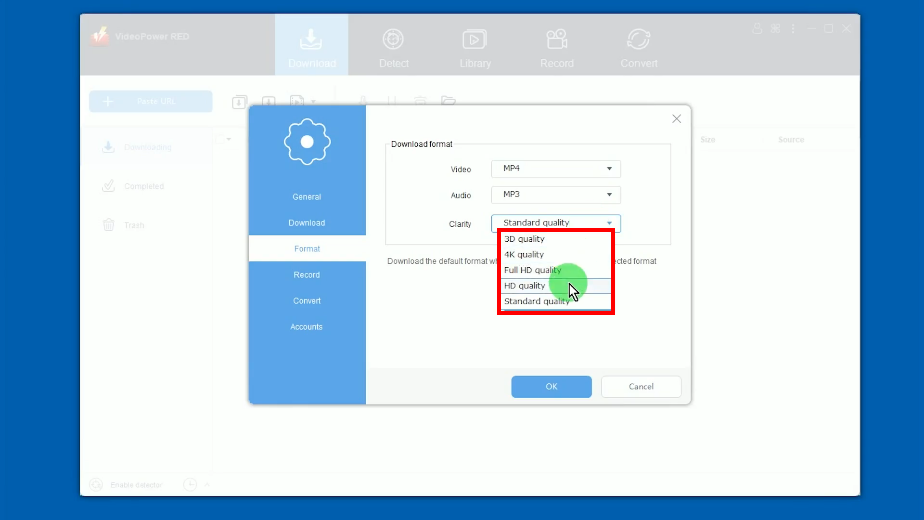
A list of options will drop down. You can select the output quality up to 4K quality. In this example, we will set the “clarity” to “HD quality”.
Step 3: Paste the copied Vimeo video URL
Go back to the VideoPower RED’s main interface and click the “Paste URL” button to begin the download.
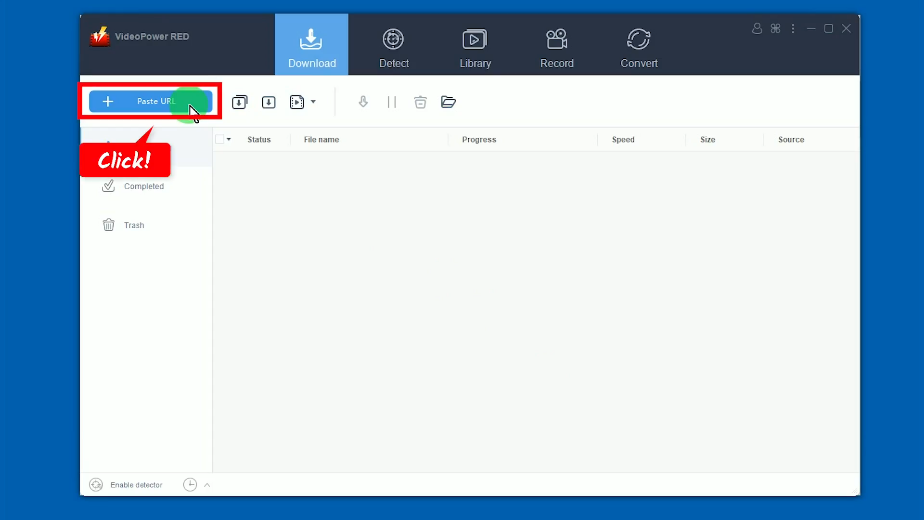
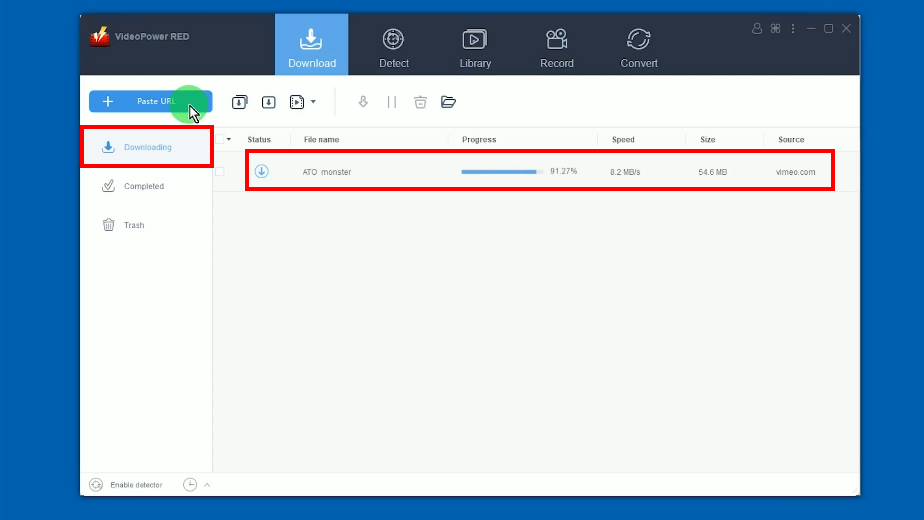
Step 4: Check the download progress
The pasted video URL will be processed for download under the “Downloading” tab.
Step 5: Vimeo video download is completed
When the download is completed, it will be moved to the “Completed” tab.
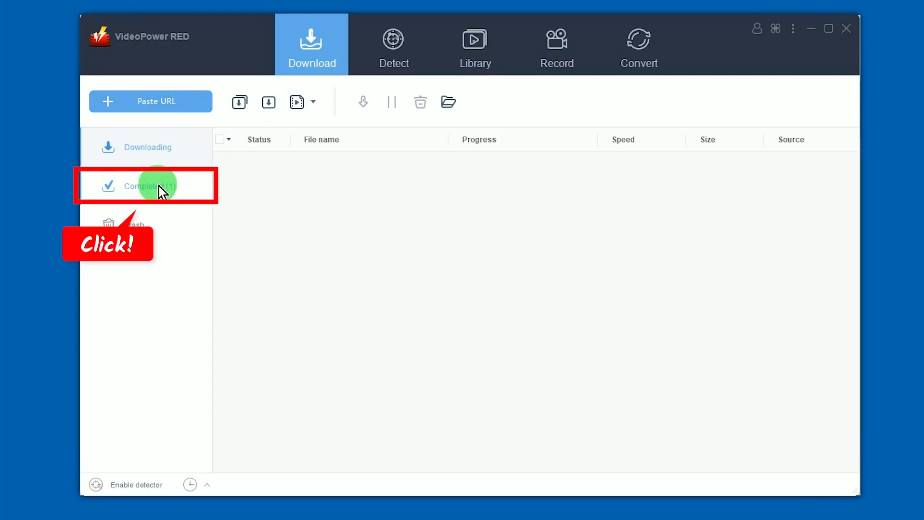
You may right-click the downloaded file and select “Play” from the options to preview the downloaded video.

Conclusion:
The advantage of using Vimeo is that it doesn’t run advertisements. Therefore, you can enjoy streaming without interruptions. For uploading, you can store 5 terabytes with analytic tools premium account. Its privacy settings are not lacking too since you can have detailed control over who can see your videos.
Enjoying your desired HD videos online can be possible through accessing sites online like Vimeo wherein watching, sharing, and promoting videos you like or need is attainable. If you want to watch and enjoy Vimeo videos offline, you can download Vimeo HD videos using VideoPower RED. With its easy-to-use interface, you can now download any videos quickly. Moreover, you get to enjoy its additional features like screen recording, video editor, video library, batch downloader, and more!
ZEUS series can do everything that VideoPower series can do and more, the interface is almost the same.
Check out NOW! Start easier with more affordable prices!




ZEUS Series
VideoPower brother products, start easier with more affordable prices!
| ZEUS BUNDLE 1 Year License ⇒ $29.99 |
ZEUS BUNDLE LITE 1 Year License ⇒ $19.99 |
ZEUS RECORD LITE 1 Year License ⇒ $9.98 |
ZEUS DOWNLOAD LITE 1 Year License ⇒ $9.98 |
||
| Screen Recorder | Screen&Audio Recording | ✔ | ✔ | ✔ | |
| Duration Setting, Schedule Recording | ✔ | ||||
| Video Downloader | Paste URL to download, batch download | ✔ | ✔ | ✔ | |
| Search/download video,browser detector | ✔ | ||||
| Music Recorder | Record music and get music ID3 tag info | ✔ | ✔ | ||
| Music search/download/record, CD Ripper/Creator, Audio Editor | ✔ | ||||
| Video Editor | Edit and convert videos, create slideshow | ✔ | |||
| Screen Capture | Capture screen, image editor | ✔ | |||