











Video calling apparently has endless benefits, as time passes by, it became more and more popular to those business professionals. There are few popular apps that provide video calling and for sure you have already tried at least one or two.
There are plenty of applications and software’s to choose from when trying to find the best video call recorder. Some are good, some are better, and some are worse. There are tons of tricks, tools, and tips to make things faster and easier. But how do you determine which software or app is best for you?
Since we are now living with modern technology, there are still people who are using the traditional way. Telephones were upgraded into smartphones today, and computers were developed.
People today banks on to their mobile devices and computers using the internet or data through social media and they can make a video call to families and friends who are far away from them.
And some of them, even you, might want to record your video chat for personal reasons. So in this article, we are going to introduce to you the best Video Call recorder called VideoPower GREEN.
This app is specially designed to be very intuitive, it can also help users record amazing videos of themselves making a tutorial or record your video chat with their friends and families. If that will be your main objective when using this tool, then this is exactly what you’re looking for.
VideoPower GREEN or ZEUS can record a video of your computer screen or record a video using your webcam and directly share the result to your friends or even YouTube and other video sharing sites. It allows its users to edit while recording their videos, adding annotations such as arrows, drawings, and many more.
How to record a messenger video call with audio? how to record your Skype video calls? well, no worries, it’s all here.
Just click the link below to download its free trial and follow through with the steps on how to use this video call recorder.
ZEUS can do what VideoPower series can do and more with an almost similar interface.
Check out NOW! Start easier with more affordable prices!
Step 1: Settings to Record Video Call
1.1 Choose a Sound Source
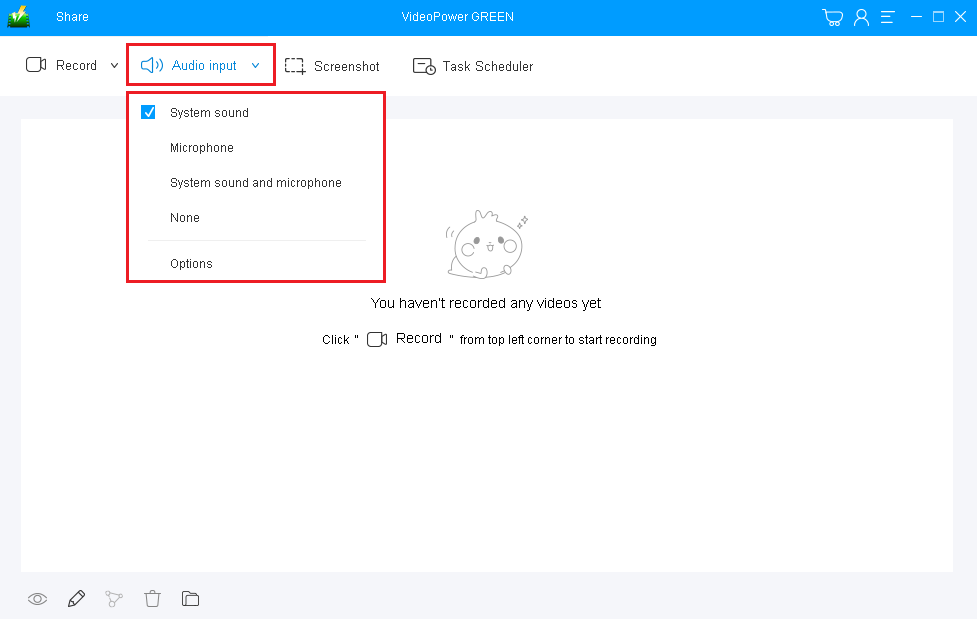
If audio is needed in recording, choose the desired sound source among “System sound, Microphone or System sound and microphone” on the “Audio Input” menu. If audio isn’t needed, just choose “None”.
To record video calls, select the “System sound and microphone” as per recommended.
1.2 Select a Recording Area
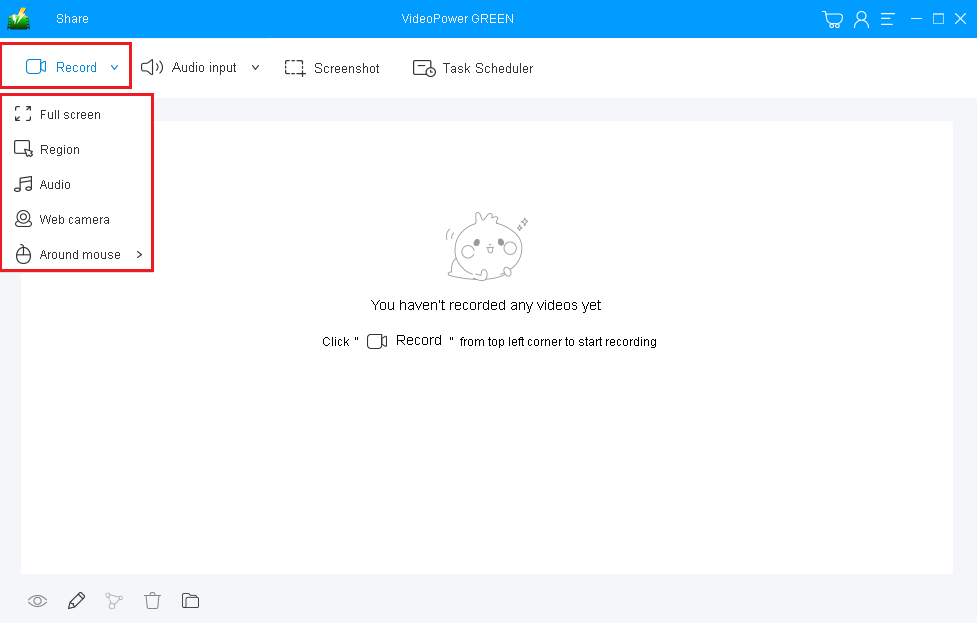
Click on the “Record” button to choose the recording mode among “Full screen, Region, Audio, Web camera, and around mouse” and then select the area you are going to record.
To record video calls, “Full screen” or “Region” is recommended.
1.3 Start to Record Video call
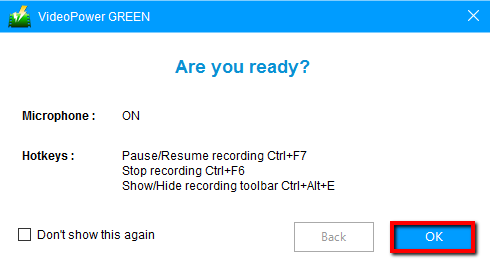
After choosing the recording area, a pop-up window will show to confirm whether to start the recording or not. Click “OK” to start the recording.
Step 2: Edit Video call while Recording (Optional)

While recording a video call screen activities, adding lines, arrows, shapes, texts, highlight, blur, etc. is possible. Just click the edit button to show the editing toolbox.
Step 3: Save the Recorded Video call file

Click the “Stop” button to stop recording. After that, the recorded video call file is already saved in the pointed output folder.
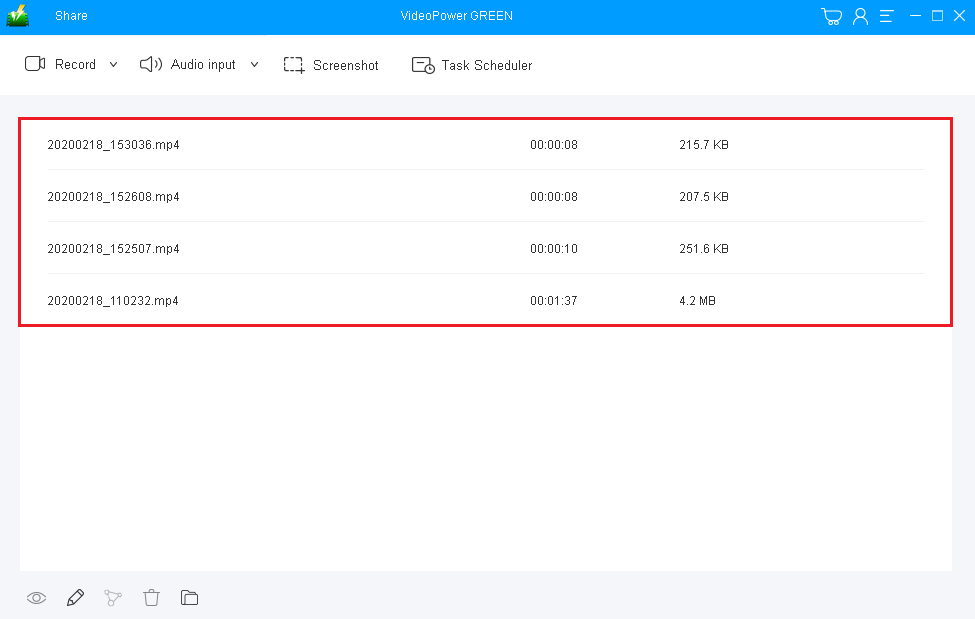
After recording the video call screen activities, the screen will automatically redirect to the recorded file list on the main interface window. Right-click the file and do more operations if necessary. Double click the file to play or view it.
Conclusion:
Trying to find the best Video call recorder for Skype? or a messenger video call recorder? or just simply a video chat recorder with various useful functions and awesome features? Well, VideoPower GREEN is the best option when it comes to video recording. It gives users a few different options when recording. Do you want to capture your entire desktop, one specific browser tab, or yourself using your webcam? Each option is available. In fact, you can record your screen and yourself at the same time. Download now.